Orange - 0% Detection Rate *
Did you just run into a file that has been digitally signed by Orange? If that's the case, please read on.
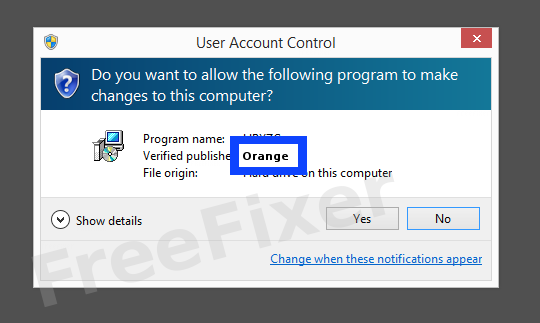
You will typically see Orange when running the file. The publisher name is then displayed as the "Verified publisher" in the UAC dialog as the screenshot shows:
You can also view the Orange certificate with the following steps:
- Open up Windows Explorer and locate the Orange file
- Right-click on the file and select Properties
- Click on the Digital Signatures tab
- Click the View Certificate button
Here's a screengrab of a file digitally signed by Orange:
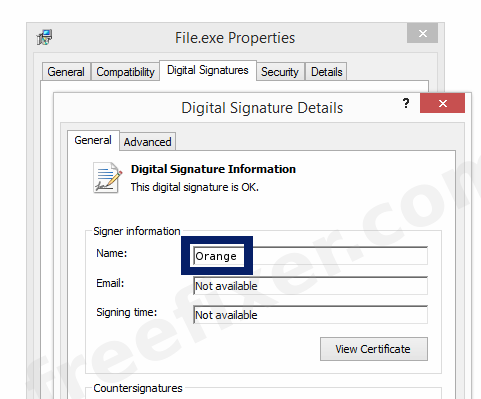
As you can see in the screenshot above, the Windows OS states that "This digital signature is OK". This implies that the file has been published by Orange and that the file has not been tampered with.
If you click the View Certificate button shown in the screencap above, you can see all the details of the certificate, such as when it was issued, who issued the certificate, how long it is valid, and so on. You can also see the address for Orange, such as the street name, city and country.
VeriSign Class 3 Code Signing 2010 CA and Symantec Class 3 SHA256 Code Signing CA has issued the Orange certificates. You can also examine the details of the issuer by clicking the View Certificate button shown in the screenshot above.
Orange Files
These are the Orange files I have collected, thanks to the FreeFixer users.
| Detection Ratio | File Name |
|---|---|
| 0/57 | maLivebox.exe |
| 0/70 | OrangeInside.exe |
| 0/56 | OrangeInside.exe |
| 0/57 | oucore.exe |
| 0/57 | OrangeInside.exe |
* How the Detection Percentage is Calculated
The detection percentage is based on that I've collected 354 scan results for the Orange files. 0 of these scan results came up with some sort of detection. If you like, you can view the full details of the scan results by examining the files listed above.
Analysis Details
The analysis has been done on certificates with the following serial numbers:
- 2ec85935b40578bf4ecbebaabef98422
- 00be2e1705019dede42639594b9e94d1
- 7cb1c41913ee8051b715cf4b1f2e67db