User's Manual
FreeFixer is a general purpose removal tool which will help you to delete potentially unwanted software, such as adware, spyware, trojans, viruses and rootkits. FreeFixer works by scanning a large number of locations where unwanted software has a known record of appearing or leaving traces. The scan locations include the programs that run on your computer, the programs that starts when you reboot your computer, your browser's plug-ins, your home page setting, etc.
FreeFixer does not know which the bad files and settings are, so the scan result will contain items you want to keep and perhaps some that you want to remove. It's up to you to decide. Please be careful! If you delete a legitimate file you may damage your computer. To assist you when determining if anything should be removed you can find more information at FreeFixer's web site for each item in the scan result. You can for example see what other users chose to do in the same situation. You can also save log file of your scan result and consult the volunteers in one of the FreeFixer helper forums.
FreeFixer is freeware and Windows 2000/XP/2003/20008/2016/2019/Vista/7/8/8.1/10 compatible. FreeFixer runs on both 32- and 64-bit Windows.
Download and install
Please download FreeFixer from the official web site. Save the installer file somewhere on your hard drive. Double-click the installer file and follow the instructions to complete the installation.
FreeFixer Pro
For those of you who wants to support my work and get some extra features, please purchase the Pro version of FreeFixer.
Features
- Automatic quarantining of files. Useful if you deleted a legitimate file and want to restore it.
- 2 years free upgrades.
Running FreeFixer
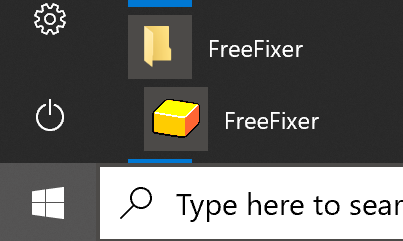 When the installation has finished you can start FreeFixer from the Windows Start menu. Click the Start menu and browse to find the FreeFixer application.
In FreeFixer, press "Start Scan" to start the scanning process. During the scan you can click on the links to find detailed information about the type of item that FreeFixer currently is scanning.
 If you are running one of the more recent versions of Windows, such as Windows 10, you can launch FreeFixer simply by typing 'freefixer' in the Search box.
Choosing what to remove
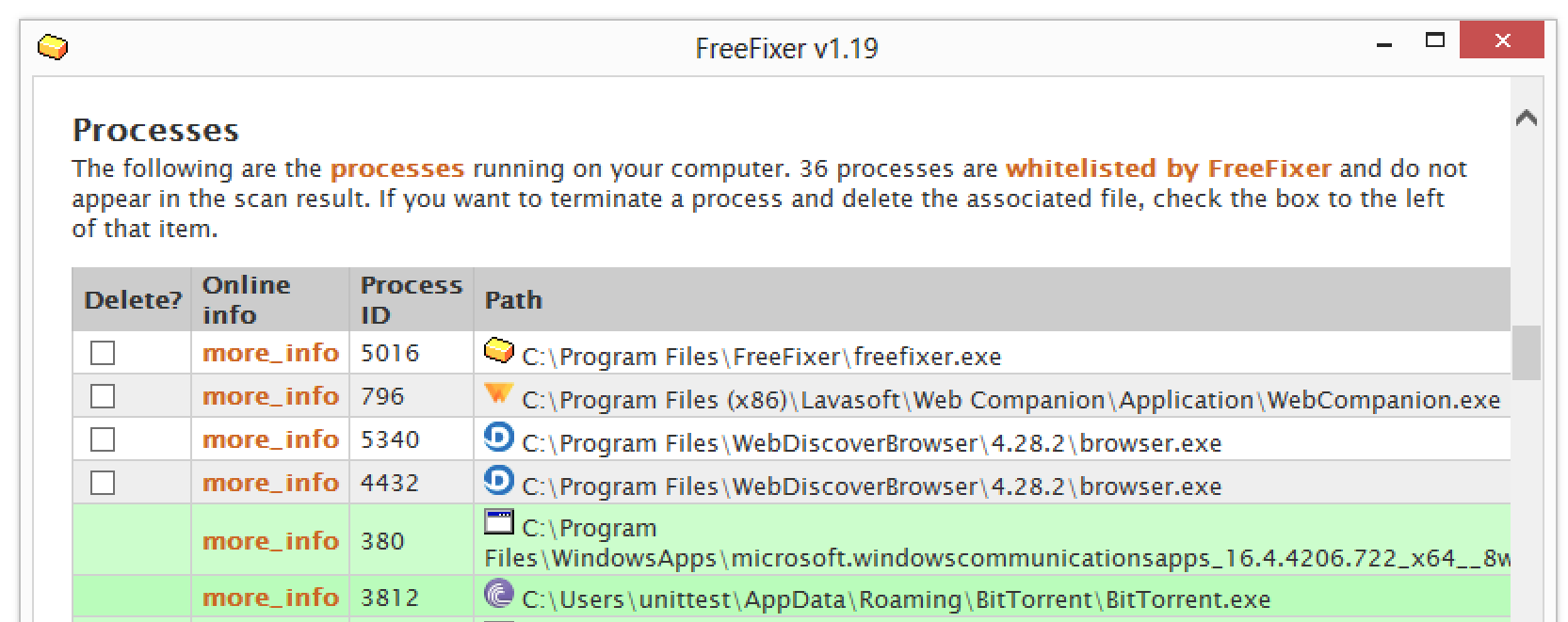 Once the scan is finished FreeFixer will display the scan results for each category. The categories
are
Browser Helper Objects,
Internet Explorer toolbars,
processes,
etc.
Your job is to decide if anything should be removed. This task is difficult if you don't have
any previous experience with removing unwanted software. To assist you with this task you can
click the "more info" links for each item in the scan result, which will open the FreeFixer web site
with additional information about the item. You will for example see if other users chose to
keep or remove a particular item in the scan result. You can also help
other users by saying if you
decided to keep or remove the item in the scan result. SHELL32.DLL and
browseui.dll are two examples on what can appear when using the "more info"
links.
Please keep in mind that removing a legitimate file may damage your computer, so if you are
unsure about some items in the scan result, it is probably better to keep them.
Once the scan is finished FreeFixer will display the scan results for each category. The categories
are
Browser Helper Objects,
Internet Explorer toolbars,
processes,
etc.
Your job is to decide if anything should be removed. This task is difficult if you don't have
any previous experience with removing unwanted software. To assist you with this task you can
click the "more info" links for each item in the scan result, which will open the FreeFixer web site
with additional information about the item. You will for example see if other users chose to
keep or remove a particular item in the scan result. You can also help
other users by saying if you
decided to keep or remove the item in the scan result. SHELL32.DLL and
browseui.dll are two examples on what can appear when using the "more info"
links.
Please keep in mind that removing a legitimate file may damage your computer, so if you are
unsure about some items in the scan result, it is probably better to keep them.
If you are a first time user you will probably find the "A typical case of spyware removal" document posted at the blog section useful. It serves as an example on how to identify and remove spyware using FreeFixer and some best practices on how to avoid removing legitimate files.
Even though the information on FreeFixer's web site offer some input if a file should be kept or removed you may want to ask an experienced user about your scan result. There are volunteers on the FreeFixer Helper forums that help users to analyse FreeFixer log files. They will ask you to copy and paste your FreeFixer log into your first post on the forum. You can save a FreeFixer log by clicking the "Save log" button, then double-click the log file and copy the contents.
For each item that you want to remove or repair, check the box to the left of the item, then click the "Fix" button.
What happens when fixing an item
If you fix an item in the scan result FreeFixer will choose the most reasonable action for that item. For example, if you fix your homepage setting FreeFixer will restore it to the homepage set in a clean install of the Windows operating system. If you choose to fix an item from the process list, FreeFixer will first shut down the process and then remove the executable file. The removal details for each item type is documented under Scan locations further ahead in this manual.
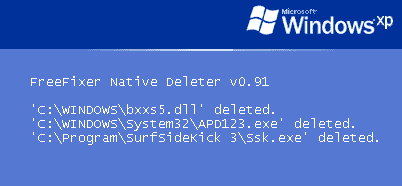
Removing malware often involves dealing with files that are almost impossible to delete in normal Windows mode and Windows Safe Mode. For example, some malware files protect themselves by loading when the login screen appear or immediately after the user logs on. Once the user is logged on, the malware file is already running and cannot be deleted.
When FreeFixer is unable to delete files in normal Windows mode they are registered for delayed removal with FreeFixer's Native Deleter, which removes the files upon the next reboot. The actual delete operation is done before the logon screen appear. The vast majority of malware can be deleted at this point. This strong removal feature is where FreeFixer stand out among the anti-malware tools.
Whitelisting
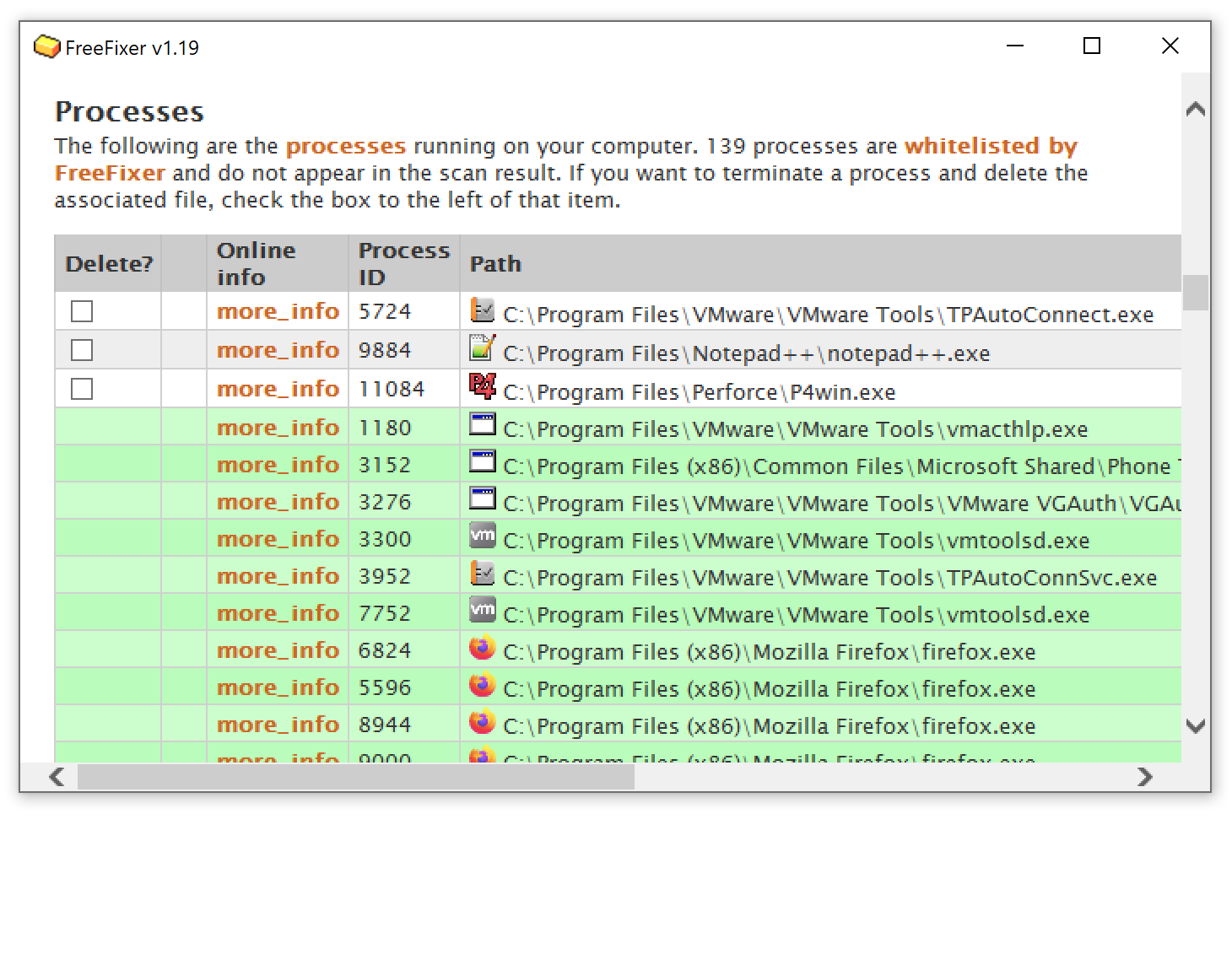 In order to reduce the number of items appearing in the scan result FreeFixer will not show
critical system files that are installed as part of Windows.
For example,
no one wants to remove the legitimate explorer.exe or svchost.exe files,
so they can safely be hidden from the scan result.
In order to reduce the number of items appearing in the scan result FreeFixer will not show
critical system files that are installed as part of Windows.
For example,
no one wants to remove the legitimate explorer.exe or svchost.exe files,
so they can safely be hidden from the scan result.
To further reduce the noise in scan result, FreeFixer has also whitelisted files from some trusted software publishers, such as Apple Inc, Trend Micro Inc, Symantec Corporation, Kaspersky Labs, Microsoft, McAfee Inc and VMWare Inc. Files from the trusted vendors are called trusted files on this web site. The trusted files will appear in the scan result, but listed with a green background color and without the delete checkbox. Please note that the trusted files will not appear in the FreeFixer log file. This will make it easier for people helping out at the FreeFixer helper forums, which often use the log file to manually identify the unwanted software.
To achieve the trusted file whitelisting, FreeFixer uses file signatures and the catalog files located on your system to check if a file is from one of the trusted publishers.
Scheduled background scanning
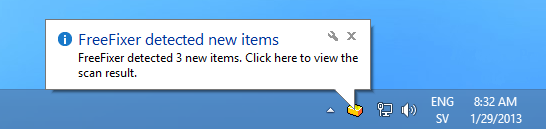 FreeFixer can continuously monitor system changes on your computer by running periodic background scans.
When the background scan detects a new item in the scan result, FreeFixer will report this in the notification area.
FreeFixer can continuously monitor system changes on your computer by running periodic background scans.
When the background scan detects a new item in the scan result, FreeFixer will report this in the notification area.
You can click on the FreeFixer icon or on the balloon to open up the scan result. The new items in the scan result
will be labeled with the
 icon.
icon.
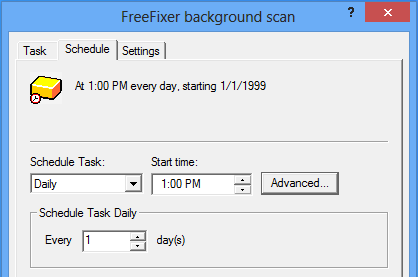 The background scan is scheduled at pre-defined times or after specified time intervals with the
Windows Task Scheduler.
By default, the background scan will be done at 13:00 every day when you are logged on. Since the Windows Task Scheduler is used to
trigger the background scan, FreeFixer will not use any system resources until the actual scan is started.
The background scan is scheduled at pre-defined times or after specified time intervals with the
Windows Task Scheduler.
By default, the background scan will be done at 13:00 every day when you are logged on. Since the Windows Task Scheduler is used to
trigger the background scan, FreeFixer will not use any system resources until the actual scan is started.
You can configure the background scanning from FreeFixer's settings tab, under "Background scanning", by pressing "Configure ...". This will bring up the Task Scheduler's configuration user interface.
To enable the scheduled background scan, click on the Task tab and tick the "Enabled (scheduled task runs at specified time)" checkbox.
Scan locations
The following section will give detailed information about the types of items that FreeFixer examines in its scan, and explain what changes are made to your system if you choose to remove an item. These are the current scan locations:
- Browser Helper Objects
- Internet Explorer toolbars
- Internet Explorer extensions
- Autostart shortcuts
- Registry Startups
- Scheduled Tasks
- Processes
- Hidden processes
- HOSTS file
- System policies
- Suspicious filenames
- AppInit_DLLs
- Winlogon Notify
- Application modules
- Drivers
- Basic Internet Explorer settings
- Internet Explorer search providers
- KnownDlls
- Services
- LAN proxy settings
- TCP/IP Listening Ports
- TCP/IP settings
- Namespace service providers
- Transport service providers
- UserInits
- Shared Schedulers
- NtLoad Startups
- Shell Services
- Boot executes
- Windows XP Firewall Authorized Applications
- Mozilla Firefox Extensions
- Mozilla Firefox modules
- Mozilla Firefox search engines
- Google Chrome Extensions
- Start Menu Internet shortcuts
- Filesystem Internet shortcuts
- Recently created or modified files
- Shell settings
- Security providers
- Autorun.inf files
- Svchost.exe modules
- Explorer.exe modules
- Rundll modules
- Dllhost.exe modules
- Mshta.exe modules
- Winlogon.exe modules
- IExplore.exe modules
- Csrss.exe virtual memory files
- Files flagged in the definition files
Browser Helper Object
A Browser Helper Object (BHO) is a plug-in for the Internet Explorer browser and Windows Explorer. Microsoft created the BHO concept to allow developers to add functionality in Internet Explorer. For example, Adobe's Acrobat Reader BHO allows users to read PDF files in Internet Explorer, Google Toolbar uses a BHO to see what web pages a user is currently visiting and shows a popularity ranking, etc.
Since the release of Internet Explorer 4.0 which introduced the BHO concept there has been many incidents where BHOs install without users' consent. For example, adware BHOs such as "180 Search Assistant", "Internet Optimizer" and "The BullsEye Network" have been installed through security holes, without any notice to the user. These are BHOs that you might want to remove with FreeFixer.
FreeFixer will list the Browser Helper Objects for both the 32-bit and 64-bit version of Internet Explorer.
Removal details
When you choose to remove a BHO with FreeFixer
"HKEY_LOCAL_MACHINE\SOFTWARE\Microsoft\Windows\CurrentVersion\Explorer\Browser Helper Objects\%GUID%\"
and
"HKEY_LOCAL_MACHINE\SOFTWARE\Classes\CLSID\%GUID%\"
are removed from the registry, where %GUID% is the global unique identifier for the BHO.
FreeFixer will also delete the file associated with the BHO.
Internet Explorer toolbars
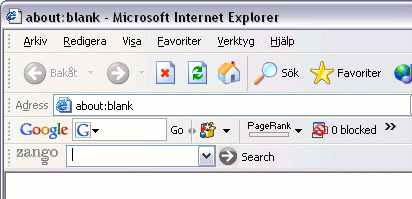 Internet Explorer allows developer to extend the user interface with toolbars. The screenshot shows
Internet Explorer with the Google Toolbar and the Zango Search Assistant toolbar.
Internet Explorer allows developer to extend the user interface with toolbars. The screenshot shows
Internet Explorer with the Google Toolbar and the Zango Search Assistant toolbar.
Since third party toolbar was introduced in Internet Explorer there has been many incidents where they install without users' consent. For example, adware toolbars such as "ZToolbar", "YourSiteBar" and "UCmore XP - The Search Accelerator" have been installed through security holes, without any notice to the user. These are toolbars that you might want to remove with FreeFixer.
FreeFixer will list the toolbars for both the 32-bit and 64-bit version of Internet Explorer.
Removal details
The following registry values and keys will be removed from the registry when using FreeFixer to delete a toolbar:
HKEY_LOCAL_MACHINE\SOFTWARE\Classes\CLSID\%GUID%\HKEY_LOCAL_MACHINE\SOFTWARE\Microsoft\Internet Explorer\Toolbar\%GUID%HKEY_CURRENT_USER\SOFTWARE\Microsoft\Internet Explorer\Toolbar\Explorer\%GUID%HKEY_CURRENT_USER\SOFTWARE\Microsoft\Internet Explorer\Toolbar\ShellBrowser\%GUID%HKEY_CURRENT_USER\SOFTWARE\Microsoft\Internet Explorer\Toolbar\WebBrowser\%GUID%
Where %GUID% is the global unique identifier for the toolbar.
The file associated with the toolbar will also be deleted.
Internet Explorer extensions
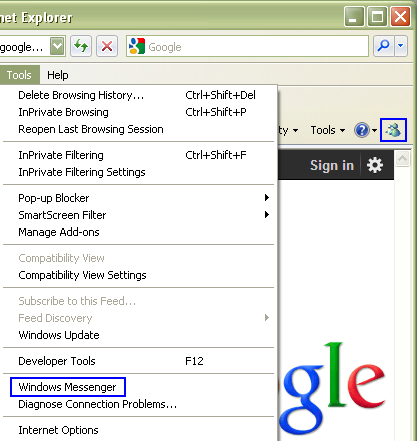 Internet Explorer allows developers to add extensions which appear as
items in Internet Explorer's Tools menu and as toolbar icons. For many years Internet Explorer has been
shipped with a pre-installed extension for Windows Messenger as shown in the screenshot. This
extension mechanism is also used by unwanted software.
Internet Explorer allows developers to add extensions which appear as
items in Internet Explorer's Tools menu and as toolbar icons. For many years Internet Explorer has been
shipped with a pre-installed extension for Windows Messenger as shown in the screenshot. This
extension mechanism is also used by unwanted software.
FreeFixer will list the extensions for both the 32-bit and 64-bit version of Internet Explorer.
Removal details
One of the following registry keys will be removed from the registry when using FreeFixer to delete an extension:
HKEY_LOCAL_MACHINE\SOFTWARE\Microsoft\Internet Explorer\Extension\%GUID%HKEY_CURRENT_USER\SOFTWARE\Microsoft\Internet Explorer\Extension\%GUID%HKEY_LOCAL_MACHINE\SOFTWARE\Wow6432Node\Microsoft\Internet Explorer\Extension\%GUID%HKEY_CURRENT_USER\SOFTWARE\Wow6432Node\Microsoft\Internet Explorer\Extension\%GUID%
Where %GUID% is the global unique identifier for the extension.
Autostart shortcut
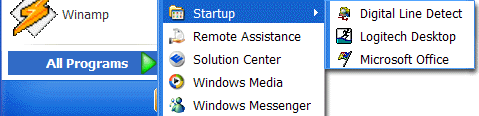
Some programs are configured to start automatically when you log in at your computer. One approach to have it started automatically is to add a shortcut in the Startup Folder. A shortcut is a small file which points to another program and a shortcut in the startup folder is called an "Autostart shortcut" since it is loaded automatically when you log in. The image shows a Startup folder, where there are three autostart shortcuts called "Digital Line Detect", "Logitech Desktop" and "Microsoft Office". These are legitimate programs which should not be removed, but some potentially unwanted programs such as "Virtual Bouncer" also adds autostart shortcuts which you may want to remove with FreeFixer.
The autostart shortcuts are usually located in "C:\Documents and Settings\All Users\Start Menu\Programs\Startup"
and "C:\Documents and Settings\%USER%\Start Menu\Programs\Startup"
where %USER% is the name of the current user.
Removal details
FreeFixer removes both the actual shortcut and the file which the shortcut points to.
Registry Startup
A popular technique of getting a program to start automatically when a user logs in on a machine is to add the program's path at one of the following registry keys:
HKEY_CURRENT_USER\SOFTWARE\Microsoft\Windows\CurrentVersion\RunHKEY_CURRENT_USER\SOFTWARE\Microsoft\Windows\CurrentVersion\RunOnceHKEY_CURRENT_USER\SOFTWARE\Microsoft\Windows\CurrentVersion\RunOnceExHKEY_CURRENT_USER\SOFTWARE\Microsoft\Windows\CurrentVersion\RunServicesOnceHKEY_CURRENT_USER\SOFTWARE\Microsoft\Windows\CurrentVersion\RunServicesHKEY_LOCAL_MACHINE\SOFTWARE\Microsoft\Windows\CurrentVersion\RunHKEY_LOCAL_MACHINE\SOFTWARE\Microsoft\Windows\CurrentVersion\RunOnceHKEY_LOCAL_MACHINE\SOFTWARE\Microsoft\Windows\CurrentVersion\RunOnceExHKEY_LOCAL_MACHINE\SOFTWARE\Microsoft\Windows\CurrentVersion\RunServicesOnceHKEY_LOCAL_MACHINE\SOFTWARE\Microsoft\Windows\CurrentVersion\RunServicesHKEY_LOCAL_MACHINE\SOFTWARE\Microsoft\Windows NT\CurrentVersion\Terminal Server\Install\Software\Microsoft\Windows\CurrentVersion\RunHKEY_LOCAL_MACHINE\SOFTWARE\Microsoft\Windows NT\CurrentVersion\Terminal Server\Install\Software\Microsoft\Windows\CurrentVersion\RunOnceHKEY_LOCAL_MACHINE\SOFTWARE\Microsoft\Windows NT\CurrentVersion\Terminal Server\Install\Software\Microsoft\Windows\CurrentVersion\RunOnceEx
In addition, the same also applies to the following registry keys on 64-bit versions of Windows:
HKEY_CURRENT_USER\SOFTWARE\Wow6432Node\Microsoft\Windows\CurrentVersion\RunHKEY_CURRENT_USER\SOFTWARE\Wow6432Node\Microsoft\Windows\CurrentVersion\RunOnceHKEY_CURRENT_USER\SOFTWARE\Wow6432Node\Microsoft\Windows\CurrentVersion\RunOnceExHKEY_CURRENT_USER\SOFTWARE\Wow6432Node\Microsoft\Windows\CurrentVersion\RunServicesOnceHKEY_CURRENT_USER\SOFTWARE\Wow6432Node\Microsoft\Windows\CurrentVersion\RunServicesHKEY_LOCAL_MACHINE\SOFTWARE\Wow6432Node\Microsoft\Windows\CurrentVersion\RunHKEY_LOCAL_MACHINE\SOFTWARE\Wow6432Node\Microsoft\Windows\CurrentVersion\RunOnceHKEY_LOCAL_MACHINE\SOFTWARE\Wow6432Node\Microsoft\Windows\CurrentVersion\RunOnceExHKEY_LOCAL_MACHINE\SOFTWARE\Wow6432Node\Microsoft\Windows\CurrentVersion\RunServicesOnceHKEY_LOCAL_MACHINE\SOFTWARE\Wow6432Node\Microsoft\Windows\CurrentVersion\RunServicesHKEY_LOCAL_MACHINE\SOFTWARE\Wow6432Node\Microsoft\Windows NT\CurrentVersion\Terminal Server\Install\Software\Microsoft\Windows\CurrentVersion\RunHKEY_LOCAL_MACHINE\SOFTWARE\Wow6432Node\Microsoft\Windows NT\CurrentVersion\Terminal Server\Install\Software\Microsoft\Windows\CurrentVersion\RunOnceHKEY_LOCAL_MACHINE\SOFTWARE\Wow6432Node\Microsoft\Windows NT\CurrentVersion\Terminal Server\Install\Software\Microsoft\Windows\CurrentVersion\RunOnceEx
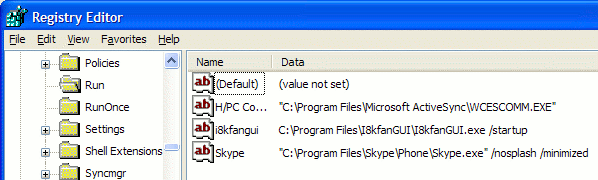 A program listed at these locations
is called a "Registry Startup" in FreeFixer's scan result.
The image shows three
legitimate programs that use this technique:
A program listed at these locations
is called a "Registry Startup" in FreeFixer's scan result.
The image shows three
legitimate programs that use this technique:
Potentially unwanted software often add themselves at these registry locations too. For example, "New.net", "Power Scan", "Surf Accuracy" and "Surf SideKick" which have been installed without users' consent all add their path at the registry locations listed above in order to start when a user logs in.
Removal details
If you choose to remove a registry startup, FreeFixer will first remove the registry value at the registry location listed above and the file associated with the registry startup.
Scheduled Tasks
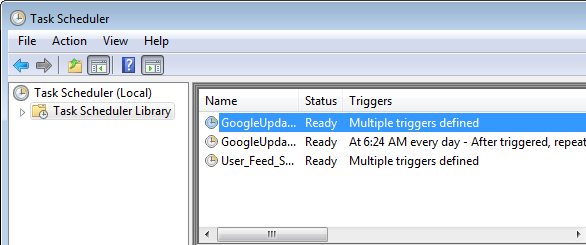 Another technique of getting a program to start automatically
is to add a scheduled task with help of the
Windows Task Scheduler.
The image shows
Google Chrome's scheduled tasks which are added when installing the Chrome browser.
Another technique of getting a program to start automatically
is to add a scheduled task with help of the
Windows Task Scheduler.
The image shows
Google Chrome's scheduled tasks which are added when installing the Chrome browser.
Some potentially unwanted software also adds scheduled tasks.
Removal details
If you choose to remove a scheduled task, FreeFixer will remove the task entry from the Windows Task Scheduler and the file that the scheduled task had configured to run.
Process
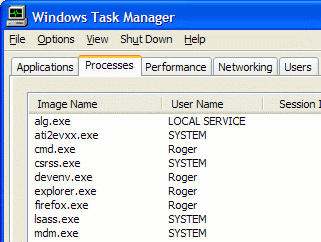
The majority of the programs available for the Windows platform appear as a separate process when running on a computer. For example, explorer.exe and svchost.exe are legitimate processes that always appear on a Windows XP machine. Often potentially unwanted software also appear as a process on your computer. For example, "NaviSearch", "SurfAccuracy" and "RelevantKnowledge/MarketScore", which have been installed without users' consent all appear as a process on the machine.
Hidden process
Some malware tries to hide their presence on infected machines by hiding processes from the Task Manager and any other program that enumerates running processes. Malware often implement the hiding by hooking the system calls that lists processes. FreeFixer will use two methods of enumerating the running processes, one that will use a regular system call and another that is guaranteed to bypass any user-mode hook. FreeFixer will then compare the results of these two system calls to detect the hidden processes. Please note that false positives can appear, if a new process is started right between the two system calls.
"AfxRootkit 2005" and "Hacker Defender" are two user-mode rootkits that will be detected by FreeFixer's hidden process scan.
FreeFixer cannot detect processes hidden by a kernel-mode rootkit.
The hidden process scan is not done on Windows Server 2012 and Windows 8 or later versions of the Windows operating system.
Removal details
If you choose to remove one of the processes listed in the scan result, FreeFixer will first kill the process then delete the file.
HOSTS file
The HOSTS file is used to translate a host name to an IP (Internet Protocol) address without querying the DNS (Domain Name System) server. The HOSTS file is often modified by malware to redirect users from legitimate sites to a server controlled by the malware author. Malware can also modify the HOSTS file to block users from visiting legitimate anti-spyware and anti-virus sites. An example is trendmicro.com, which is blocked by some malware. You can find the complete list of HOSTS file redirects in FreeFixer online library.
FreeFixer knows about many anti-malware sites which have been blocked with the HOSTS file and use this information to determine which redirects should appear in the scan log. These are the legitimate sites FreeFixer knows about:
- www.symantec.com
- securityresponse.symantec.com
- symantec.com
- www.sophos.com
- sophos.com
- www.mcafee.com
- mcafee.com
- liveupdate.symantecliveupdate.com
- www.viruslist.com
- viruslist.com
- f-secure.com
- www.f-secure.com
- kaspersky.com
- kaspersky-labs.com
- www.grisoft.com
- www.avp.com
- www.kaspersky.com
- avp.com
- www.networkassociates.com
- networkassociates.com
- www.ca.com
- ca.com
- mast.mcafee.com
- my-etrust.com
- www.my-etrust.com
- download.mcafee.com
- dispatch.mcafee.com
- secure.nai.com
- nai.com
- www.nai.com
- update.symantec.com
- updates.symantec.com
- us.mcafee.com
- liveupdate.symantec.com
- customer.symantec.com
- rads.mcafee.com
- trendmicro.com
- www.trendmicro.com
- www.microsoft.com
- www.freefixer.com
- freefixer.com
- www.kephyr.com
- kephyr.com
Removal details
If you choose to remove some items from the HOSTS file and it is read-only, FreeFixer will temporarily remove the write-protection.
System policies
FreeFixer will scan some of the system policies:
DisableTaskMgr
If this policy is enabled the user cannot start the Task Manager (taskmgr.exe). Malware sometimes add this policy
to make it harder to troubleshoot and remove the unwanted software. If this policy is enabled, you will see a message
saying Task Manager has been disabled by your administrator
, when starting Task Manager.
If you choose to repair this policy, FreeFixer will set it to 0, which will allow you to use the Task Manager.
DisableRegistryTools
This policy disables the Windows registry editors, Regedt32.exe and Regedit.exe. Removing malware manually often require these tools. If you choose to repair this policy, FreeFixer will set it to 0, which will allow you to use the registry tools again.
Wallpaper
This policy is sometimes used by malware to prevent users from changing the background image. For example,
Troj/Spywad-G
sets the wallpaper policy to C:\WINDOWS\desktop.html, which displays a fake warning message.
NoChangingWallpaper
The NoChangingWallpaper settings controls Windows Explorer's behaviour when configuring the desktop background.
By default, users can configure the desktop background by right-clicking on the desktop, choosing Properties and then
selecting the Desktop tab.
Sometimes malware adds a custom background image, typically with some scary message such as Your system is infected"
,
and lock it by setting the NoChangingWallpaper policy to 1. This
will disable the background listbox in the Display Properties dialog, preventing you from changing or removing the current background
image.
If you choose to repair this policy, FreeFixer will set NoChangingWallpaper to 0, which will enable the background listbox again
and allow you to change the desktop's background.
NoActiveDesktopChanges
The NoActiveDesktopChanges settings controls Windows Explorer's behaviour when configuring the Active Desktop.
If NoActiveDesktopChanges is set to 0 or missing, you can configure your Active Desktop by right-clicking
on the desktop, choose Properties, select the Desktop tab and click Customize Desktop. This will bring up the
Desktop Items dialog. Select the Web tab, where you can configure your system to use a web page as a desktop background.
However, if NoActiveDesktopChanges is set to 1, the Web tab will be missing in the Desktop Items dialog which prevents
you from editing the web background settings. Malware sometimes sets a custom background, and then locks it by using the
NoActiveDesktopChanges policy.
If you choose to repair this policy, FreeFixer will set NoActiveDesktopChanges to 0, which will enable the Web tab again
and allow you to change the desktop's web background.
NoSetActiveDesktop
The NoSetActiveDesktop policy controls the Active Desktop menu item in
Microsoft Internet Explorer 5.
If the policy is set to 1, the Active Desktop menu item will be hidden which will prevent
you from editing or removing the current web desktop background.
Suspicious filename
A common practice used among trojan authors to disguise their files is to pick the same filename as a legitimate system file. For example,
svchost.exe - the Generic Host Process for Win32 Services - is located in 'C:\Windows\System32\' on
Windows XP. On a clean system multiple svchost.exe processes will appear in the Task Manager's process list, how many depends on how you
have configured your system. Some trojans also use svchost.exe as their filename, but put it in a different directory, often
'C:\Windows\'. Unfortunately, the trojan svchost.exe will probably go undetected when a user inspects the processes in Task Manager.
FreeFixer scans the system for files with the same name as a system file, but located in a directory where it should not
be present. For example, FreeFixer checks if there is a file named explorer.exe
in 'C:\Windows\System32\' and 'C:\'. If such a file exists you might want examine it more in detail since the
legitimate explorer.exe should be located in 'C:\Windows\'.
AppInit_DLLs
The AppInit_DLLs registry value holds a list of dynamic link libraries (DLLs). Every time an application loads User32.dll the system will read the AppInit_DLLs value and load all DLLs specified. This is used by some firewalls, anti-virus products but also by malware to load the malicious code into practically every process on a machine. For example, some installations of the "SurfSideKick" adware uses AppInit_DLLs to load a repair DLL that protect the adware from removal.
Normally the AppInit_DLLs registry value is empty, so if something appear in the scan
you might want examine the DLL more in detail. AppInit_DLLs are located under
'HKEY_LOCAL_MACHINE\SOFTWARE\Microsoft\Windows NT\CurrentVersion\Windows' and
'HKEY_LOCAL_MACHINE\SOFTWARE\Wow6432Node\Microsoft\Windows NT\CurrentVersion\Windows'.
Winlogon Notify
NT-based systems prior to Windows Vista supports Winlogon Notifications, which allows programs to receive and handle Winlogon events. For example, winlogon events occur when the computer is rebooted and shut down, when the screensaver starts and stops and when a user logs in and out. Windows itself register components to receive winlogon events, however it is also used by malware, such as the "Haxdoor" backdoor.
The 64-bit version of FreeFixer will scan both 32-bit and 64-bit Winlogon Notify DLLs.
Application modules
During the scan FreeFixer examines the modules loaded into the freefixer.exe process. Generally the modules appear with the .DLL extensions in the scan result. There should be approximately 57 modules loaded into FreeFixer on a machine running Windows XP Home Service Pack 2. The purpose of this scan is to reveal unwanted software. For example, many keyloggers will appear in the list of modules, since their .DLL is likely to be loaded into FreeFixer. Rudimentary rootkits can also reveal themselves in the module list.
Drivers
Device drivers are used to interact with hardware attached to a computer. For example, drivers are used to interact with printers, video cards, network cards, etc. Some malware, such as Spyware.Apropos.C, install their own device driver on infected systems.
Removal details
If you choose to remove a driver FreeFixer will
remove 'HKEY_LOCAL_MACHINE\SYSTEM\CurrentControlSet\Services\%ID%\',
where %ID% is the registry key identifier for the driver.
The associated .sys file will also be removed.
Basic Internet Explorer settings
FreeFixer will scan many of the basic Internet Explorer settings:
Start Page
The Start Page is the web site that loads when you start Internet Explorer. If you choose to
repair the start page settings FreeFixer will set it to
"http://www.microsoft.com/isapi/redir.dll?prd=ie&pver=%IEVER%&ar=msnhome", where
%IEVER% is the version number of Internet Explorer.
Search Page
If you choose to
repair the Search Page settings FreeFixer will set it to
'http://www.microsoft.com/isapi/redir.dll?prd=ie&ar=iesearch', where
%IEVER% is the version number of Internet Explorer.
Default_Page_URL
If you choose to
repair the Default_Page_URL settings FreeFixer will set it to
'http://www.microsoft.com/isapi/redir.dll?prd=ie&pver=%IEVER%&ar=msnhome', where
%IEVER% is the version number of Internet Explorer.
Default_Search_URL
If you choose to
repair the Default_Search_URL settings FreeFixer will set it to
'http://www.microsoft.com/isapi/redir.dll?prd=ie&ar=iesearch'.
CustomizeSearch
If you choose to
repair the CustomizeSearch settings FreeFixer will set it to
'http://ie.search.msn.com/{SUB_RFC1766}/srchasst/srchcust.htm'.
SearchAssistant
If you choose to
repair the SearchAssistant settings FreeFixer will set it to
'http://ie.search.msn.com/{SUB_RFC1766}/srchasst/srchasst.htm'.
URL prefixes
If you are running Internet Explorer you have propably noticed that you can enter a domain name into the address bar, and it is prefixed with 'http://'. For example, if you type 'www.freefixer.com' Internet Explorer replace it with 'http://www.freefixer.com/'. If you type 'ftp.sunet.se' it will be replace by 'ftp://ftp.sunet.se/'.
There are 6 prefixes available by default, namely the
ftp,
gopher,
home,
mosaic,
www and the
DefaultPrefix. These are defined under
the following registry keys:
HKEY_LOCAL_MACHINE\SOFTWARE\Microsoft\Windows\CurrentVersion\URL\PrefixesHKEY_LOCAL_MACHINE\SOFTWARE\Microsoft\Windows\CurrentVersion\URL\DefaultPrefix
If you choose to repair any of the prefixes, FreeFixer will restore the default value.
Wallpaper
The desktop wallpaper, identified with the following registry key
HKEY_CURRENT_USER\SOFTWARE\Microsoft\Internet Explorer\Desktop\General, Wallpaper,
is often changed by malware. If you choose repair the Wallpaper setting, FreeFixer will
configure your computer not to use a wallpaper background, which is the default setting.
When running the 64-bit version of FreeFixer, it will also scan the settings listed above for the 32-bit version of Internet Explorer.
Internet Explorer search providers
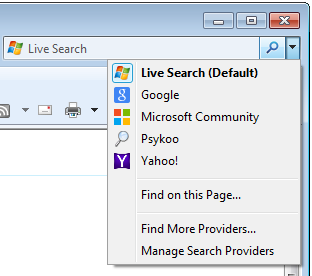 The Internet Explorer search field, that is found in the upper right corner, can be customized with additional search engines.
There are many useful search providers such as Google, Bing, Yahoo, etc, but there is also a large number of companies
that push their unwanted search engines into Internet Explorer by bundling.
The Internet Explorer search field, that is found in the upper right corner, can be customized with additional search engines.
There are many useful search providers such as Google, Bing, Yahoo, etc, but there is also a large number of companies
that push their unwanted search engines into Internet Explorer by bundling.
Removal details
An Internet Explorer search provider is identified by a group of registry keys and values added under
"HKLM/HKCU\SOFTWARE\Microsoft\Internet Explorer\SearchScopes" in the Windows Registry. If you choose to remove a search
provider, the registry keys and values that belongs to the search provider will be deleted. After restarting
Internet Explorer, the search provider will no longer appear in the search field.
KnownDlls
Windows 2000, Windows XP and Windows Vista uses the KnownDlls registry entries
when the system is locating a DLL.
FreeFixer examines the registry entries under
'HKEY_LOCAL_MACHINE\System\CurrentControlSet\Control\Session Manager\KnownDlls'
and will report any modifications from the
default setup.
Microsoft refers to the KnownDlls registry entries as a security feature which
secures the system from someone deceptively replacing APIs by placing a rogue DLL in the application directory
.
The KnownDlls scan has been disabled since since version 1.15.
Services
A Windows service is an application that runs in the background and usually starts before the login screen appear. Windows itself has many services, such as "Automatic Updates", which manages the download and installation of critical updates. Unfortunately there are also malware that run as services, such as Backdoor.Win32.Agent.alm.
Removal details
When you choose to remove a service, FreeFixer will remove the service key under
"HKEY_LOCAL_MACHINE\SYSTEM\CurrentControlSet\Services\"
and delete the associated service file.
LAN proxy settings
A proxy server is a server that works as an intermediary for client requests. The client connects to the proxy server and asks for something, perhaps a web page, and the proxy server retrieves the web page from the web server. There are proxies for HTTP, HTTPS, FTP and many other protocols. The LAN proxy settings are global settings for Windows, used by your web browsers by default. The most common configuration on Windows machines is to not use any proxy.
There are many adwares that reconfigures the proxy settings to a proxy server controlled by the adware, often running on the same machine as where the adware is installed. Typically, the adware proxy server then inserts advertisements into web pages before passing them on to the client. If the proxy settings are pointing to a local proxy the hostname would say localhost, 127.0.0.1 or use the name of your computer.
If the proxy setting points to a proxy running on your local machine, FreeFixer will try to figure out the path to the file that contains the proxy server code. If the proxy runs as a service inside Microsoft's svchost.exe service host, FreeFixer will display the service name and the path to the .DLL containing the proxy server code. The minimum requirement for this feature is Windows XP SP2 or Windows Server 2003 with SP1.
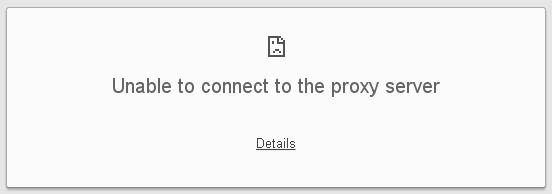
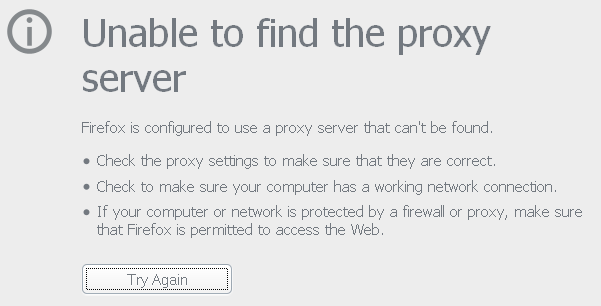
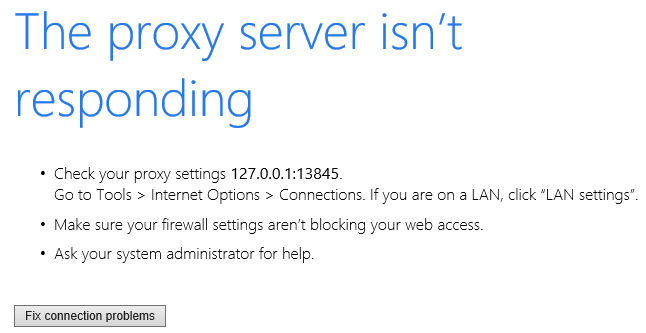
If the proxy settings are pointing to a proxy server that is not running or no longer exists, you
will see an error message saying
Unable to connect to the proxy server
if you are running Chrome,
Unable to find the proxy server
in Firefox or
The proxy server isn't responding
if you are browsing with Internet Explorer.
Removal details
If you choose to remove a LAN Proxy Setting for a specific protocol, that proxy is removed from the Windows registry. FreeFixer does not delete the associated proxy file. Programs that used the proxy will instead connect directly to the server instead of the proxy. Please keep in mind that you may need to restart the program that used the proxy before it notices the change in the Windows registry.
The proxy settings are controlled by the "ProxyServer" and "ProxyEnable" values under
"HKEY_CURRENT_USER\SOFTWARE\Microsoft\Windows\CurrentVersion\Internet Settings" in the Windows
registry.
TCP/IP Listening Ports
If you are familiar with computer network protocols you've probably heard about the User Datagram Protocol (UDP) and the Transmission Control Protocol (TCP). Many applications on the Internet use TCP and UDP. For example web browsers, web servers, e-mail clients, e-mail servers, the Domain Name System (DNS), etc. A TCP/UDP server will listen on a port. A port is identified by a number between 0 and 65535. For example, a web server typically listens on port 80, Microsoft Terminal Server (RDP) listens on port 3389 and Blizzard's Battle.net chat/file application listens on port 1119 and 1120. DNSes often use UDP port 53 to serve requests.
The above are examples of legitimate software listening on a TCP or UDP port. But there are also various types of malware that use a TCP or UDP server. Some use it to set up a local HTTP proxy, others to allow access to the infected computer from anywhere in the world.
FreeFixer will show what ports are used by TCP and UDP servers on the machine. For each port FreeFixer will show the port number and the port name (ftp, ssh telnet smtp, http, etc). The port names are the same as you can see when using the netstat command line tool. FreeFixer will also show the process ID, the file name, and other information about the process and the port. However, since the Windows operating system is also using TCP and UDP servers for many of its services, protocols and applications FreeFixer checks the found port against a whitelist of Microsoft's most commonly used ports. If the port is whitelisted, it will not appear in the scan result. This is done to reduce the noise in the scan result. For example, on a Windows 10 machine there's approximately 18 TCP ports used just by the operating system.
Removal details
When you choose to remove a TCP or UDP server, FreeFixer will delete the associated file. You will probably need to reboot your machine before FreeFixer can completely delete the file.
TCP/IP settings
NameServer
The name server is responsible for the conversion from a domain name to an IP addresses. For example, when you type www.google.com into the web browser your name server converts it to 64.233.167.99, which is the IP address for Google's search engine. Some malware reconfigures the nameserver setting to a nameserver which they control, allowing them to send users to unwanted sites. For example, there's a malware that change the nameservers to 85.255.115.29 and 85.255.112.140
Removal details
When you choose to remove a name server, FreeFixer will clear the NameServer registry value under
"HKEY_LOCAL_MACHINE\SYSTEM\CurrentControlSet\Services\Tcpip\Parameters\Interfaces\%GUID%"
or
"HKEY_LOCAL_MACHINE\SYSTEM\CurrentControlSet\Services\Tcpip\Parameters",
where %GUID% is the global unique identifier for the network interface.
Namespace service providers
Namespace providers are services that associate addresses of a network protocol with human-friendly names. For example, on a Windows XP machine there are namespace providers installed for TCP/IP, NT Directory Service and Network Location Awareness. An example of a namespace provider is the NewDotNet software.
Removal details
If you choose to remove a provider, FreeFixer uses the Winsock Service Provider Interface to uninstall it from the system.
Transport service providers
Transport providers are services that implements functions that set up network connections, transfer network data, etc. Some transport providers are called Layered Service Providers (LSP) and can intercept and modify traffic from another transport provider. An example of a transport provider is the NewDotNet software.
Removal details
If you choose to remove a provider, FreeFixer uses the Winsock Service Provider Interface to uninstall it from the system.
UserInit
The Userinit setting specifies the programs that Winlogon runs when a user logs on. By default,
userinit.exe is started, which in turn runs Explorer.exe.
This setting is used by some malware, such as
ntos.exe (Trojan.Spy.Bancos.AAM)
and the sdra64.exe
password stealer.
The 64-bit version will scan both 32-bit and 64-bit UserInits.
Removal details
If you choose to remove a file listed as a UserInit, the file name will be removed from
the Userinit registry value located under "HKEY_LOCAL_MACHINE\SOFTWARE\Microsoft\Windows NT\CurrentVersion\Winlogon" or
"HKEY_LOCAL_MACHINE\SOFTWARE\Wow6432Node\Microsoft\Windows NT\CurrentVersion\Winlogon".
The actual file will also be deleted. If FreeFixer during the removal notices that Userinit's default data
is missing it will be added. The default data for Userinit is
"c:\windows\system32\userinit.exe," or "userinit".
Shared Schedulers
The SharedTaskScheduler registry settings specify a number of files that will
be loaded by Explorer.exe upon startup.
This setting is used by some malware, such as
cbnfa.dll (Trojan.Spambot.BXB).
The 64-bit version of FreeFixer will scan both the 32-bit and 64-bit shared schedulers.
Removal details
If you choose to remove a Shared Scheduler
"HKEY_LOCAL_MACHINE\SOFTWARE\Microsoft\Windows\CurrentVersion\Explorer\SharedTaskScheduler, %GUID%"
and
"HKEY_LOCAL_MACHINE\SOFTWARE\Classes\CLSID\%GUID%\"
will be removed from the registry, where %GUID% is the global unique identifier for the shared scheduler.
The actual file will also be deleted.
NtLoad Startups
The NtLoad registry setting specifies a number of executables that will be started when logging on to your machine. This registry value is used by some malware, such as Troj/Hasik-A.
Removal details
If you choose to remove a NtLoad Startup FreeFixer will modify the "load" registry value under
"HKEY_CURRENT_USER\Software\Microsoft\Windows NT\CurrentVersion\Windows". The registry value
holds a comma separated list of files and the one you selected for removal will be deleted from the list.
The actual file will also be deleted from the disk.
Shell Services
The Shell Service registry setting specifies a number of dynamic link libraries that are loaded into the Windows Explorer process. This feature is used by legitimate components, such as the Network Connections System Tray component that, depending on your system settings, may appear in system tray area. This registry setting is also used by malware such as Trojan.Win32.Agent.eld and Troj/Melko-A.
The 64-bit version of FreeFixer scans both the 32-bit and 64-bit Shell Services.
Removal details
A Shell Service is identified by the following registry value:
"HKEY_LOCAL_MACHINE\SOFTWARE\Microsoft\Windows\CurrentVersion\ShellServiceObjectDelayLoad, %NAME% = %GUID%" or
"HKEY_LOCAL_MACHINE\SOFTWARE\Wow6432Node\Microsoft\Windows\CurrentVersion\ShellServiceObjectDelayLoad, %NAME% = %GUID%"
Where %NAME% is the name of the Shell Service and %GUID% is the global unique identifier for the service.
If you choose to delete a Shell Service, the %NAME% registry value will be deleted.
The "HKEY_LOCAL_MACHINE\SOFTWARE\Classes\CLSID\%GUID%\" registry key will also be deleted or
"HKEY_LOCAL_MACHINE\SOFTWARE\Classes\Wow6432Node\CLSID\%GUID%\" if the Shell Service was 32-bit and
installed on a 64-bit machine.
And finally, the actual file specified under
"HKEY_LOCAL_MACHINE\SOFTWARE\Classes\CLSID\%GUID%\InprocServer32\" or
"HKEY_LOCAL_MACHINE\SOFTWARE\Classes\Wow6432Node\CLSID\%GUID%\InprocServer32\" is deleted from disk.
Boot executes
The BootExecute registry setting specifies a number of executables that are started during the Service Load Phase. At this time of the boot sequence the WIN32 subsystem has not been started, so the bootexecute programs cannot link regular DLLs such as kernel32.dll. Instead these programs use the NT Native API by linking to ntdll.dll. The BootExecute registry setting is used by legitimate programs such as FreeFixer's Native Deleter ffnd.exe and Microsoft's autochk.exe tool, but can also be used to launch a malware executable during reboot.
Removal details
If you choose to remove a BootExecute the registry data and the associated file will be deleted.
Windows XP Firewall Authorized Applications
The Windows XP Firewall keeps track of all applications that are allowed to accept inbound network connections. If an application is not on the list, it cannot accept incoming connections. Some malware, such as Win32.Qweasy.F, add themselves to the firewall's list of authorized applications to unblock the malware's network activity.
Removal details
If you choose to remove an authorized application, it will be removed from
the XP Firewall's authorized application list, specified under
"HKEY_LOCAL_MACHINE\SYSTEM\CurrentControlSet\Services\SharedAccess\Parameters\FirewallPolicy\%PROFILE%\AuthorizedApplications\List",
where %PROFILE% is DomainProfile or StandardProfile.
The actual file will also be deleted from disk.
Mozilla Firefox extensions
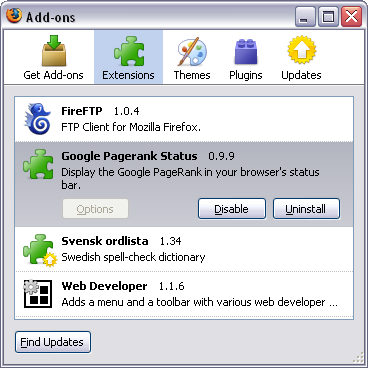 Mozilla Firefox allows developers to extend the web browser by building extensions. There are
many excellent extensions, such "FireFTP", "Google Pagerank Status" and "Web Developer", but unfortunately
some unwanted extensions have begun to appear.
Mozilla Firefox allows developers to extend the web browser by building extensions. There are
many excellent extensions, such "FireFTP", "Google Pagerank Status" and "Web Developer", but unfortunately
some unwanted extensions have begun to appear.
A Firefox extension is identified by
a file named install.rdf or %EXTENSION_NAME%@%DOMAIN%.xpi, usually located under
"C:\Program Files\Mozilla Firefox\extensions"
or
"C:\Documents and Settings\%USERNAME%\Application Data\Mozilla\Firefox\Profiles\%PROFILE%\extensions",
where
%EXTENSION_NAME% is the name of the extension,
%DOMAIN% is the domain where the extension is published,
%USERNAME% is your Windows user name and
%PROFILE% is your Firefox profile
identifier. The .rdf/.xpi file contains information about the extension and the developer.
Removal details
If you choose to remove a Mozilla Firefox extension, FreeFixer will remove the extension's .rdf/.xpi file.
Once you restart Firefox, it will remove any remaining files that belongs to the extension.
Mozilla Firefox search engines
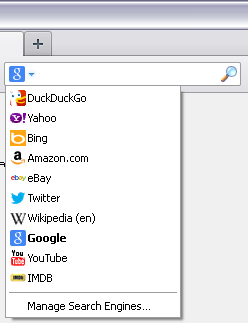 The Mozilla Firefox search field can be customized with additional search engines. The search field
can be found in the upper right corner in Firefox. There are many useful search engine
add-ons such as YouTube, IMDB, etc, but there is also a large number of web sites
that push their unwanted search engines into Firefox by bundling.
The Mozilla Firefox search field can be customized with additional search engines. The search field
can be found in the upper right corner in Firefox. There are many useful search engine
add-ons such as YouTube, IMDB, etc, but there is also a large number of web sites
that push their unwanted search engines into Firefox by bundling.
A Firefox search engine is identified by
a file named %SEARCHENGINE%.xml, usually located under
"C:\Documents and Settings\%USERNAME%\Application Data\Mozilla\Firefox\Profiles\%PROFILE%\searchplugins",
where
%SEARCHENGINE% is the name of the search engine file,
%USERNAME% is your Windows user name and
%PROFILE% is your Firefox profile
identifier. The .xml file contains information about the search engine.
Removal details
If you choose to remove a Mozilla Firefox search engine, FreeFixer will remove the search engine's .xml file.
Once you restart Firefox, the search engine will no longer appear in the search field.
Mozilla Firefox modules
FreeFixer scans all dynamic link libraries loaded into
the firefox.exe processes. This can sometimes reveal malware.
Removal details
If you choose to remove a Mozilla Firefox module, FreeFixer will remove the file from your hard-drive.
Google Chrome extensions
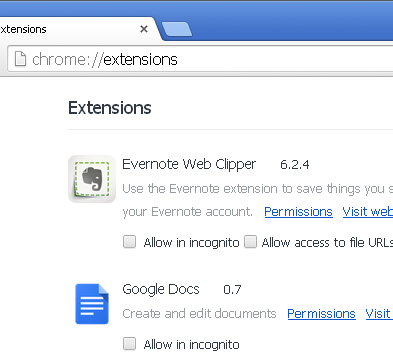 The Google Chrome web browser allows developers to extend the web browser by building extensions. There are
many useful extensions, such as "Google Translate" and "Web Developer", but unfortunately
there are also many unwanted extensions.
The Google Chrome web browser allows developers to extend the web browser by building extensions. There are
many useful extensions, such as "Google Translate" and "Web Developer", but unfortunately
there are also many unwanted extensions.
A Chrome extension is identified by
a file named manifest.json usually located under
"%LOCALAPPDATA%\Google\Chrome\User Data\%CHROME_USER%\Extensions", where
where
%LOCALAPPDATA% is the local "AppData" folder, and
%CHROME_USER% is the name of a chrome user.
Removal details
FreeFixer cannot remove Chrome extensions. You can disable or remove extensions manually by typing chrome://extensions in Chrome's address bar.
Start Menu Internet shortcuts
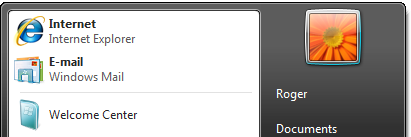 The Start Menu Internet shortcut is a feature in Windows XP, 2003, 2008 and Vista where an Internet icon is displayed
in the top left corner of the Start Menu. The shortcut can be configured to launch one of the Internet browsers installed
on the machine. Many users use this shortcut when they want to browse the Internet.
The Start Menu Internet shortcut is a feature in Windows XP, 2003, 2008 and Vista where an Internet icon is displayed
in the top left corner of the Start Menu. The shortcut can be configured to launch one of the Internet browsers installed
on the machine. Many users use this shortcut when they want to browse the Internet.
Sometimes the Start Menu Internet shortcut is modified with an unwanted web page, which makes the shortcut launch the unwanted web page instead of the web page that the browser normally opens up. This is often done by adding the URL of the unwanted web page to the command line of the shortcut. The command line is located in the Windows Registry.
FreeFixer scans the Start Menu shortcuts that belong to the Internet Explorer, Mozilla Firefox, Google Chrome, Safari and Opera browsers.
Repair details
If you choose to repair a Start Menu Internet shortcut, FreeFixer will remove the unwanted web page URL from the shortcut's command line in the Windows Registry.
Filesystem Internet shortcuts
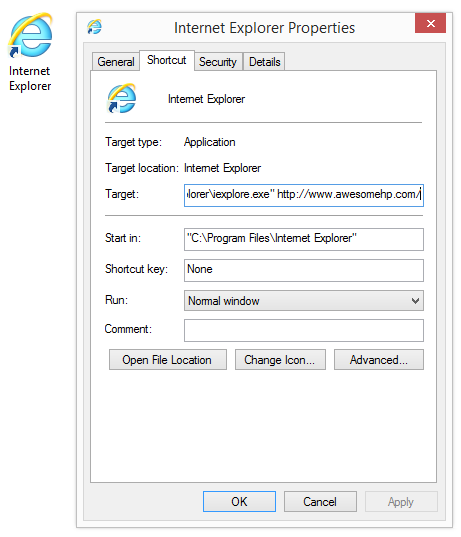 A file shortcut in Windows is a small file pointing to another file. Shortcuts are often placed on the
Windows desktop by the Internet browser vendors. By default, these shortcuts open up the web browser
and load the web site the user has configured in the browser's settings.
Unfortunately, these browser shortcuts are often
modified with an unwanted web site, which makes the shortcut open up the browser and load the unwanted web site instead
if of the browser's start page.
A file shortcut in Windows is a small file pointing to another file. Shortcuts are often placed on the
Windows desktop by the Internet browser vendors. By default, these shortcuts open up the web browser
and load the web site the user has configured in the browser's settings.
Unfortunately, these browser shortcuts are often
modified with an unwanted web site, which makes the shortcut open up the browser and load the unwanted web site instead
if of the browser's start page.
FreeFixer will during the scan look at all shortcuts located under the user profiles folder, which is
located at "C:\Documents and Settings\" or
"C:\Users\" to see if the shortcuts open up a browser and load a web page. The profiles
folder usually contains a large number of Internet shortcuts, such as those located under the Start Menu,
the Quick Launch Toolbar and the desktop.
If FreeFixer finds such a shortcut it will appear in the scan result. FreeFixer will list shortcuts pointing to the following web browsers:
- Chrome
- Internet Explorer
- Mozilla Firefox
- Opera
- Safari
Repair details
If you choose to repair a Filesystem Internet shortcut, FreeFixer will remove the web site URL from the shortcut's command line.
Recently created or modified files
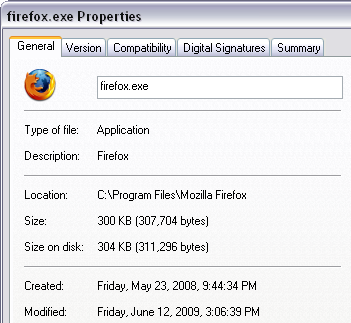 FreeFixer also scans the computer's fixed drives for the
30 most recently modified or created files. This scan is implemented by looking
at each file's modified and created date, which you can see by right-clicking on a file in
Windows Explorer and choosing properties. Since the scan is likely to
report a large number of legitimate files, the result is placed
in the end of log.
FreeFixer also scans the computer's fixed drives for the
30 most recently modified or created files. This scan is implemented by looking
at each file's modified and created date, which you can see by right-clicking on a file in
Windows Explorer and choosing properties. Since the scan is likely to
report a large number of legitimate files, the result is placed
in the end of log.
Only executable files will be listed, to avoid having Word-documents, text files, log files, etc. appearing in the scan result.
Shell settings
When logging in on a Windows machine the operating system will
by default start Windows Explorer. This
application, often called the Windows Shell, is responsible for showing the desktop icons, the Start Menu, the Taskbar, etc.
It is possible to disable or use another shell by modifying the Shell registry value located under:
"HKEY_LOCAL_MACHINE\Software\Microsoft\Windows NT\CurrentVersion\Winlogon" and
"HKEY_CURRENT_USER\Software\Microsoft\Windows NT\CurrentVersion\Winlogon".
By default, Shell is set to Explorer.exe.
Some malware will modify the Shell
value to make the malware program start each time a user logs in.
For example, here's a modified Shell value that will run a malware file named
spoolsv32.exe when a user logs in.
Repair details
If you choose to repair any of the Shell settings, the Shell
registry value will be set to Explorer.exe.
Security providers
The Windows operating system uses security providers to support various security related operations, such as the Transport Layer Security protocol.
Some malware, such as
Win32/Bredolab,
adds custom security providers to the system, by adding a DLL
name to the following registry value:
"HKEY_LOCAL_MACHINE\SYSTEM\CurrentControlSet\Control\SecurityProviders, SecurityProviders".
Repair details
If you choose to remove any of the security providers, the DLL name will be removed from the
SecurityProviders registry value and the specified DLL will be deleted.
Autorun.inf files
The Autorun feature allows software developers to customize the actions taken when a new drive is mounted to the system.
Autorun is typically used when distributing software on a CD-ROM, where the developer can -
at least on systems prior to Windows Vista - create a file named
autorun.inf which instructs the computer to automatically start the installer executable.
While this feature can be very convenient, it is also used by malware such as
W32/RJump.worm to automatically
run malware executables.
FreeFixer will look for autorun.inf in the root of all mounted drives and scan the data listed
in the [autorun] section. It will examine the files listed
at open= and shellexecute=. You can find more details on
Autorun at WikiPedia.
Repair details
If you choose to remove an Autorun item listed in FreeFixer's scan result, the actual autorun.inf file,
which is located in the root of the drive, will be removed and the
file listed under open= or shellexecute=.
Svchost.exe modules
Svchost.exe is the generic host process for services. There are multiple instances of svchost.exe on a Windows machine and they host many legitimate services such as the "Automatic Updates" service. FreeFixer scans all dynamic link libraries loaded into the svchost.exe processes. This can reveal malware files that has been injected into any of the host processes.
Explorer.exe modules
FreeFixer scans all dynamic link libraries loaded into the Explorer.exe process. This can sometimes reveal malware files that has been injected into the Windows Explorer process.
Rundll modules
FreeFixer scans all dynamic link libraries loaded into the Rundll32.exe processes. This can sometimes reveal malware files.
Dllhost.exe modules
FreeFixer scans all dynamic link libraries loaded into the COM+ hosting processes, Dllhost.exe. This can sometimes reveal malware files.
Mshta.exe modules
FreeFixer scans all dynamic link libraries loaded into the Microsoft HTML Application Host, Mshta.exe. This can sometimes reveal malware files.
Winlogon.exe modules
FreeFixer scans all dynamic link libraries loaded into the Winlogon.exe process. This can sometimes reveal malware files.
IExplore.exe modules
FreeFixer scans all dynamic link libraries loaded into the Internet Explorer processes. This can sometimes reveal malware loaded as browser helper objects or toolbars.
Csrss.exe virtual memory files
Csrss.exe is the user-mode component of the Win32 subsystem. FreeFixer scans the virtual memory of
csrss.exe for file paths. This can sometimes detect rootkit processes that don't appear in the
process scan result. This type of scan is not done on Windows 8, Windows 8.1 and Windows 10.
Files flagged in the definition files
FreeFixer version 0.48 introduced the definition file, which allows anyone to create lists of files which should be detected as malware. In its current state the definition file can only detect malware based on file locations. Future versions of FreeFixer will add more powerful detection techniques.
The FreeFixer log
The FreeFixer log is a plain text report of the scan result. The log basically contains the same information as the scan result. The log will also display the FreeFixer version number, when the log was generated and what operating system you are running. At the end of the log is the history from previous runs of the FreeFixer program. The history tracks FreeFixer's file removals and direct modifications of the Windows registry.
The following is a FreeFixer log from an infected computer. The log shows many malware files such as winhelper.dll, msa.exe, c.exe, msxml71.dll, a.exe, exe[1].exe, SetupAdvancedVirusRemover[1].exe, dfghfghgfj[1].dll and wscsvc32.exe. There are only two legitimate files in the log - freefixer.exe and ffnd.exe - which belong the Freefixer program:
FreeFixer v1.12 log
http://www.freefixer.com/
Operating system: Windows 8.1
Log dated 2014-08-28 10:17


Transport service providers (3 whitelisted)
===========================================
{A25E7F7A-4049-450F-9789-AF876910F6A7} - C:\WINDOWS\system32\winhelper.dll, signer: [unsigned]
{6DBCA3F0-ACCF-4F0E-8998-F976BB4FA56D} - C:\WINDOWS\system32\winhelper.dll, signer: [unsigned]

Processes (19 whitelisted)
==========================
C:\WINDOWS\msa.exe, signer: [unsigned]
C:\Program Files\FreeFixer\freefixer.exe, signer: [unsigned]

Application modules (67 whitelisted)
====================================
C:\WINDOWS\system32\winhelper.dll, signer: [unsigned]

Recently created/modified files (7 whitelisted)
3 minutes, c:\WINDOWS\system32\ffnd.exe, signer: [unsigned]
5 minutes, c:\WINDOWS\msa.exe, signer: [unsigned]
5 minutes, c:\Documents and Settings\roger\Local Settings\Temp\c.exe, signer: [unsigned]
5 minutes, c:\WINDOWS\system32\msxml71.dll, signer: [unsigned]
5 minutes, c:\Documents and Settings\roger\Local Settings\Temp\a.exe, signer: [unsigned]
5 minutes, c:\Documents and Settings\roger\Local Settings\Temporary Internet Files\Content.IE5\WEGR55JE\exe[1].exe, signer: [unsigned]
5 minutes, c:\Documents and Settings\roger\Local Settings\Temporary Internet Files\Content.IE5\6CSRVCZ7\SetupAdvancedVirusRemover[1].exe, signer: [unsigned]
5 minutes, c:\Documents and Settings\roger\Local Settings\Temporary Internet Files\Content.IE5\4HUF4TYN\dfghfghgfj[1].dll, signer: [unsigned]
5 minutes, c:\WINDOWS\system32\winhelper.dll, signer: [unsigned]
7 minutes, c:\Documents and Settings\roger\Local Settings\Temp\wscsvc32.exe, signer: [unsigned]


History
+HKCU\SOFTWARE\Microsoft\Windows\CurrentVersion\policies\system, DisableTaskMgr = 0
-HKLM\SOFTWARE\Microsoft\Windows\CurrentVersion\Run, winupdate.exe
-C:\WINDOWS\system32\winupdate.exe (on reboot)
-HKCU\SOFTWARE\Microsoft\Windows\CurrentVersion\Run, wow64main.exe
-C:\DOCUME~1\roger\LOCALS~1\Temp\wow64main.exe (on reboot)
-HKCU\SOFTWARE\Microsoft\Windows\CurrentVersion\Run, winhbt.exe
-C:\DOCUME~1\roger\LOCALS~1\Temp\winhbt.exe (on reboot)
-HKCU\SOFTWARE\Microsoft\Windows\CurrentVersion\Run, Advanced Virus Remover
-C:\Program Files\AdvancedVirusRemover\AVR.exe (on reboot)
-HKCU\SOFTWARE\Microsoft\Windows\CurrentVersion\Run, PopRock
-C:\DOCUME~1\roger\LOCALS~1\Temp\b.exe (on reboot)

End of FreeFixer log
The history shows that FreeFixer
has been used to delete the following malware files during a previous run:
winupdate.exe,
wow64main.exe,
winhbt.exe,
AVR.exe and
b.exe. Malware items under
HKCU\SOFTWARE\Microsoft\Windows\CurrentVersion\Run
in the Windows registry and the
setting that disables the Windows Task Manager have also been removed.
The FreeFixer Tools
In the Tools tab, you can find some tools that can be helpful during malware removal:
File Nuker
FreeFixer's File Nuker allows to manually register a file for removal. Browse or type in the absolute path to the file in the text-area and click the "Delete file" button. The file will be delete when you reboot your machine. The actual delete operation is done before the logon screen appear. Most malware can be deleted at this point.
System File Checker
Microsoft's System File Checker tool can scan all protected Windows files to verify their integrity. If System File Checker discovers that a protected Windows file has been overwritten or tampered with, it will restore the file from the cache folder (usually C:\Windows\System32\Dllcache) or the Windows installation CD/DVD. If you want to start the System File Checker manually you can do so by clicking Start -> Run -> type in "cmd.exe" without the quotes -> OK -> type "sfc.exe /scannow" without the quotes and press enter.
Settings file
FreeFixer reads many configuration settings from the settings file.
On Windows 2000, XP, 2003 and 2008 it is located at
"C:\Documents and Settings\%USERNAME%\Application Data\FreeFixer\settings.txt"
where %USERNAME% is your user name. On Windows 7 and Vista, it's found at
"C:\Users\%USERNAME%\AppData\Roaming\FreeFixer\settings.txt".
On Windows 7 and Vista you have to configure your system to display hidden files and folders
to see the settings file. To do so, start Windows Explorer -> Organize -> Folder and Search Options ->
View Tab -> Show hidden files and folders.
The settings file controls some of FreeFixer's behaviour. For example, adding the following to the settings file will disable the scan for recently created or modified files:
plugins.recentfiles.enable=0
The following settings are supported:
| Setting | Description | Allowed values |
|---|---|---|
logfile.files.md5 |
If enabled, the MD5 hash will be diplayed for each file in the FreeFixer log. | 0,1 |
logfile.files.sha256 |
If enabled, the SHA256 hash will be diplayed for each file in the FreeFixer log. | 0,1 |
plugins.bho.enable |
Enable/disable the Browser Helper Objects scan. | 0,1 |
plugins.toolbar.enable |
Enable/disable the Internet Explorer toolbars scan. | 0,1 |
plugins.regstartup.enable |
Enable/disable the Registry Startups scan. | 0,1 |
plugins.autostart.enable |
Enable/disable the Autostart shortcuts scan. | 0,1 |
plugins.process.enable |
Enable/disable the Processes scan. | 0,1 |
plugins.iesettings.enable |
Enable/disable the Basic Internet Explorer settings scan. | 0,1 |
plugins.policies.enable |
Enable/disable the System policies scan. | 0,1 |
plugins.filenaming.enable |
Enable/disable the Suspicious filenames scan. | 0,1 |
plugins.hostsfile.enable |
Enable/disable the HOSTS file scan. | 0,1 |
plugins.appmodules.enable |
Enable/disable the Application modules scan. | 0,1 |
plugins.hiddenprocess.enable |
Enable/disable the Hidden processes scan. | 0,1 |
plugins.appinitdlls.enable |
Enable/disable the AppInit_DLLs scan. | 0,1 |
plugins.winlogonnotify.enable |
Enable/disable the Winlogon Notify scan. | 0,1 |
plugins.knowndlls.enable |
Enable/disable the KnownDlls scan. | 0,1 |
plugins.drivers.enable |
Enable/disable the Drivers scan. | 0,1 |
plugins.services.enable |
Enable/disable the Services scan. | 0,1 |
plugins.tcpip.enable |
Enable/disable the TCP/IP settings scan. | 0,1 |
plugins.shellservice.enable |
Enable/disable the Shell Services scan. | 0,1 |
plugins.sharedscheduler.enable |
Enable/disable the Shared Schedulers scan. | 0,1 |
plugins.bootexecute.enable |
Enable/disable the Boot executes scan. | 0,1 |
plugins.tsp.enable |
Enable/disable the Transport service providers scan. | 0,1 |
plugins.nsp.enable |
Enable/disable the Namespace service providers scan. | 0,1 |
plugins.ntloads.enable |
Enable/disable the NtLoad Startups scan. | 0,1 |
plugins.xpfwauthapps.enable |
Enable/disable the Windows XP Firewall Authorized Applications scan. | 0,1 |
plugins.recentfiles.enable |
Enable/disable the Recently created or modified files scan. | 0,1 |
plugins.firefoxextension.enable |
Enable/disable the Mozilla Firefox Extensions scan. | 0,1 |
plugins.firefoxmodules.enable |
Enable/disable the Mozilla Firefox modules scan. | 0,1 |
plugins.shellsettings.enable |
Enable/disable the Shell settings scan. | 0,1 |
plugins.thirdpartyfiles.enable |
Enable/disable the Files flagged in the definition files scan. | 0,1 |
plugins.securityproviders.enable |
Enable/disable the Security provider scan. | 0,1 |
plugins.svchostmodules.enable |
Enable/disable the Svchost.exe module scan. | 0,1 |
plugins.explorermodules.enable |
Enable/disable the Explorer.exe module scan. | 0,1 |
plugins.rundllmodules.enable |
Enable/disable the Rundll module scan. | 0,1 |
plugins.dllhostmodules.enable |
Enable/disable the Dllhost.exe module scan. | 0,1 |
plugins.mshtamodules.enable |
Enable/disable the Mshta.exe module scan. | 0,1 |
plugins.winlogonmodules.enable |
Enable/disable the Winlogon.exe module scan. | 0,1 |
plugins.iemodules.enable |
Enable/disable the IExplore.exe modules scan. | 0,1 |
plugins.csrssmemscan.enable |
Enable/disable the Csrss.exe virtual memory files scan. | 0,1 |
communication.fileupload.enable |
Enable/disable file uploads when clicking the 'more info' links in the scan result. If enabled, files will be uploaded and stored on the FreeFixer server for analysis. The files will also be uploaded to 3rd party anti-virus scanner services, such as VirusTotal. | 0,1 |
During startup FreeFixer will first look for the settings.txt file in the same folder
where freefixer.exe is located. If there is a settings file available, it will be used instead of
C:\Documents and Settings\%USERNAME%\Application Data\FreeFixer\settings.txt.
This feature has been added to better support FreeFixer as a portable application.
Download FreeFixer portable here.
Troubleshooting
Sometimes FreeFixer runs into problem when scanning and removing files from the computer. The following chapter will enumerate some of the most common problems and explain why they occur and present a work-around.
"Problems opening folder 'c:\Windows\System32\LogFiles\WMI\RtBackup' to enumerate files"
Problems opening folder 'c:\Windows\System32\LogFiles\WMI\RtBackup' to enumerate files. FindFirstFile failed. System error message: Access is denied. Error code: 5.
FreeFixer will during the scan look for recently created or modified files by enumerating all files on your drives. By default, Windows 7, Vista and 8 prevents users from accessing the "RtBackup" folder. Thus FreeFixer reports that it cannot examine the files and subfolders located in "RtBackup".
"Problems opening folder 'c:\Windows\CSC\v2.0.6' to enumerate files"
Problems opening folder 'c:\Windows\CSC\v2.0.6' to enumerate files. FindFirstFile failed. System error message: Access is denied. Error code: 5.
FreeFixer will during the scan look for recently created or modified files by enumerating all files on your drives. By default, Windows 7 prevents users from accessing the "v2.0.6" folder. FreeFixer reports that it cannot scan the files and folder located inside "v2.0.6". Windows 8 prevents access to 'c:\Windows\CSC'.
"Problems opening folder 'c:\ProgramData\Microsoft\Windows\LocationProvider' to enumerate files"
FreeFixer will during the scan look for recently created or modified files by enumerating all files on your drives. Problems opening folder 'c:\ProgramData\Microsoft\Windows\LocationProvider' to enumerate files. FindFirstFile failed. System error message: Access is denied. Error code: 5.
FreeFixer will during the scan look for recently created or modified files by enumerating all files on your drives. By default, Windows 8 prevents users from accessing the "LocationProvider" folder. FreeFixer reports that it cannot scan the files and folder located inside "LocationProvider".
"Failed to create Web Browser Control - Class not registered"
FreeFixer is built using the Microsoft Browser control. There are a number of reasons why creating the browser control can fail. If you see "Class not registered" in the error message when starting FreeFixer, it is likely that something has damaged the Microsoft Browser Control's registration in the Windows registry.
Solution 1
If you have Internet Explorer 7, 8, 9 or 10 on your system, uninstall them, and then re-install the version you want to use. Restart your machine and run FreeFixer again.
Solution 2
If you are comfortable editing the Windows Registry, you can look up the following registry key:
"HKEY_CLASSES_ROOT\CLSID\{8856F961-340A-11D0-A96B-00C04FD705A2}\InProcServer32"
This registry key is the browser control's registration in the Windows registry. It should be available on all Windows systems starting from Windows 2000.
The default value under this registry key should be set to
"C:\WINDOWS\system32\shdocvw.dll" or
"C:\WINDOWS\system32\ieframe.dll".
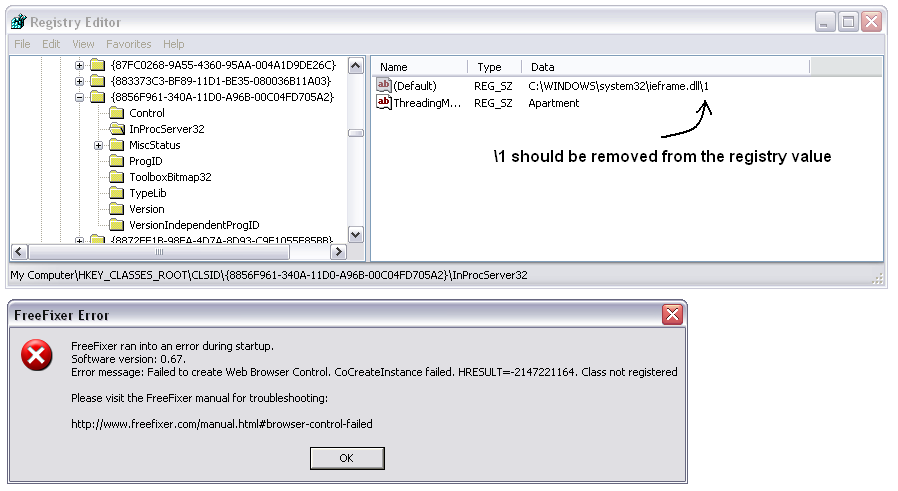
However, if you notice that \1 is attached at the end of the DLL path you've most likely found
the cause why the browser control cannot be created. \1 should be removed from the DLL path.
Here's a screenshot of the registry containing the incorrect ieframe.dll\1 value.
If none of the suggested work-arounds above worked, please contact me and I'll try to find a solution.
FreeFixer never finish scanning
Sometimes FreeFixer never finish scanning. I've noticed this problem appearing while scanning the Windows XP Firewall Authorized Applications or the recently created or modified files while the operating system is downloading the latest security patches in the background. This problem usually appears on Tuesdays, due to the fact that's when Microsoft releases the patches.
Solution 1 (preferred)
The problem can be fixed by first installing all high-priority updates and restarting the FreeFixer scan. The process to install the updates is a bit different depending on what operating system you are running. Basically, you open up http://www.update.microsoft.com/ in Internet Explorer and choose to download and install all high-priority updates. The following step-by-step instructions are for users running Windows XP:
- Open up http://www.update.microsoft.com/ in Internet Explorer.
- Click the button "Express" button. Microsoft will now scan your computer to determine which high-priority updates your machine needs.
- Click the "Install Updates" button.
- The operating system will now start downloading and installing the updates. This may take a while.
- When the update is finished, reboot your machine. Start FreeFixer and scan your computer again.
Solution 2
You can also disable the scan location where FreeFixer gets stuck. Scan locations can be disabled
in FreeFixer's settings.txt file:
- Start FreeFixer and close it. The
settings.txtfile should now be available to edit in the"C:\Documents and Settings\%USERNAME%\Application Data\FreeFixer\"folder if you are running Windows 2000, XP, 2003 or 2008. It's located in"C:\Users\%USERNAME%\AppData\Roaming\FreeFixer"if you are running Windows 7 or Vista. - Double-click the
settings.txtfile. - If FreeFixer got stuck in the Windows XP Firewall Authorized Applications scan,
add:
plugins.xpfwauthapps.enable=0
on a new line in the settings file. If FreeFixer hanged in the recently created or modified files scan, add:plugins.recentfiles.enable=0
If FreeFixer got stuck at another scan location you can add the setting to disable that plugin. - Start FreeFixer and scan your computer again.
"The process cannot access the file because it is being used by another process"
An error occurred when trying to open the file for reading. Filename:
'C:\DOCUME~1\Roger\LOKALA~1\Temp\31809828.exe'. Current Working Directory:C:\Program Files\FreeFixer\. System error message: The process cannot access the file because it is being used by another process.
This error will occur when another process has opened a file in an exclusive mode, preventing FreeFixer from loading the file and calculating checksums and extracting version information. This does not mean that file is malware, but you may want to examine it more in detail. (I've seen this problem appearing while on a system infected with Trojan-Downloader.Win32.Small.ecp.)
Additional information
The Library
Did you know that you can find an overview of the most searched and most unwanted files in the FreeFixer Library?
Credits
FreeFixer is developed by Roger Karlsson. Logotype designed by Johanna Forsman.