What is awhC2AA.tmp?
awhC2AA.tmp is usually located in the 'c:\users\%USERNAME%\appdata\local\temp\' folder.
Some of the anti-virus scanners at VirusTotal detected awhC2AA.tmp.
If you have additional information about the file, please share it with the FreeFixer users by posting a comment at the bottom of this page.
VirusTotal report
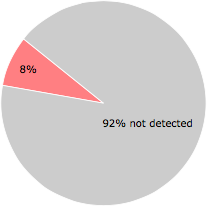
4 of the 50 anti-virus programs at VirusTotal detected the awhC2AA.tmp file. That's a 8% detection rate.
| Scanner | Detection Name |
|---|---|
| Comodo | Heur.Corrupt.PE |
| F-Prot | W32/Damaged_File.gen!Eldorado |
| McAfee-GW-Edition | Heuristic.BehavesLike.Win32.ModifiedUPX.C |
| TheHacker | W32/Behav-Heuristic-CorruptFile-EP |
awhC2AA.tmp removal instructions
The instructions below shows how to remove awhC2AA.tmp with help from the FreeFixer removal tool. Basically, you install FreeFixer, scan your computer, check the awhC2AA.tmp file for removal, restart your computer and scan it again to verify that awhC2AA.tmp has been successfully removed. Here are the removal instructions in more detail:
- Download and install FreeFixer: http://www.freefixer.com/download.html
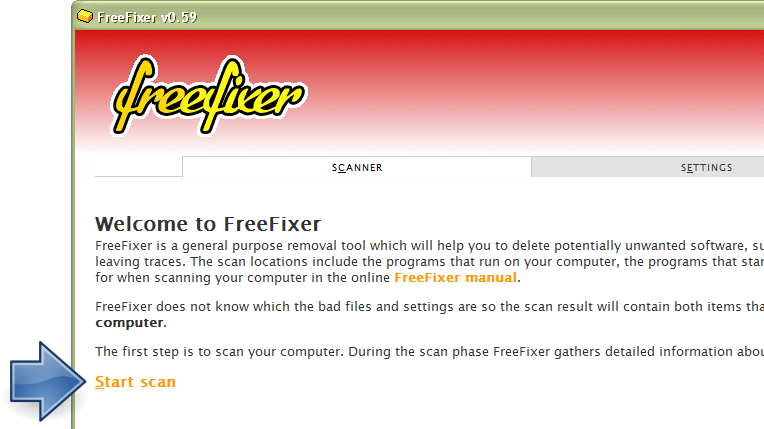
- Start FreeFixer and press the Start Scan button. The scan will finish in approximately five minutes.
- When the scan is finished, locate awhC2AA.tmp in the scan result and tick the checkbox next to the awhC2AA.tmp file. Do not check any other file for removal unless you are 100% sure you want to delete it. Tip: Press CTRL-F to open up FreeFixer's search dialog to quickly locate awhC2AA.tmp in the scan result.



 c:\users\%USERNAME%\appdata\local\temp\awhC2AA.tmp
- Scroll down to the bottom of the scan result and press the Fix button. FreeFixer will now delete the awhC2AA.tmp file.

- Restart your computer.
- Start FreeFixer and scan your computer again. If awhC2AA.tmp still remains in the scan result, proceed with the next step. If awhC2AA.tmp is gone from the scan result you're done.
- If awhC2AA.tmp still remains in the scan result, check its checkbox again in the scan result and click Fix.
- Restart your computer.
- Start FreeFixer and scan your computer again. Verify that awhC2AA.tmp no longer appear in the scan result.
Hashes [?]
| Property | Value |
|---|---|
| MD5 | 756b64dca9e3e88ae7ee298ea2e6f49e |
| SHA256 | c7668ce9b1a023f2b789fe85b7ecedc124c07a4e55f664d3a46fd613fec0a4aa |
What will you do with awhC2AA.tmp?
To help other users, please let us know what you will do with awhC2AA.tmp:
Comments
Please share with the other users what you think about this file. What does this file do? Is it legitimate or something that your computer is better without? Do you know how it was installed on your system? Did you install it yourself or did it come bundled with some other software? Is it running smoothly or do you get some error message? Any information that will help to document this file is welcome. Thank you for your contributions.
I'm reading all new comments so don't hesitate to post a question about the file. If I don't have the answer perhaps another user can help you.
No comments posted yet.