What is pcclean.exe?
pcclean.exe is usually located in the 'D:\Program Files\Complete Cleanup\' folder.
If you have additional information about the file, please share it with the FreeFixer users by posting a comment at the bottom of this page.
Digital signatures [?]
pcclean.exe is not signed.
Hashes [?]
| Property | Value |
|---|---|
| MD5 | e324751bd6a3e52280a5b47987774952 |
| SHA256 | 7d376c28cf536afe03107fce9762f9a3e986fbec60534eadb56baa1ec2526230 |
Error Messages
These are some of the error messages that can appear related to pcclean.exe:
pcclean.exe has encountered a problem and needs to close. We are sorry for the inconvenience.
pcclean.exe - Application Error. The instruction at "0xXXXXXXXX" referenced memory at "0xXXXXXXXX". The memory could not be "read/written". Click on OK to terminate the program.
pcclean.exe has stopped working.
End Program - pcclean.exe. This program is not responding.
pcclean.exe is not a valid Win32 application.
pcclean.exe - Application Error. The application failed to initialize properly (0xXXXXXXXX). Click OK to terminate the application.
What will you do with pcclean.exe?
To help other users, please let us know what you will do with pcclean.exe:
What did other users do?
The poll result listed below shows what users chose to do with pcclean.exe. 50% have voted for removal. Based on votes from 2 users.
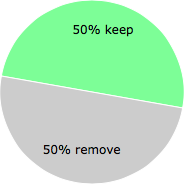
NOTE: Please do not use this poll as the only source of input to determine what you will do with pcclean.exe. Only 2 users has voted so far so it does not offer a high degree of confidence.
Malware or legitimate?
If you feel that you need more information to determine if your should keep this file or remove it, please read this guide.
And now some shameless self promotion ;)
 Hi, my name is Roger Karlsson. I've been running this website since 2006. I want to let you know about the FreeFixer program. FreeFixer is a freeware tool that analyzes your system and let you manually identify unwanted programs. Once you've identified some malware files, FreeFixer is pretty good at removing them. You can download FreeFixer here. It runs on Windows 2000/XP/2003/2008/2016/2019/Vista/7/8/8.1/10. Supports both 32- and 64-bit Windows.
If you have questions, feedback on FreeFixer or the freefixer.com website, need help analyzing FreeFixer's scan result or just want to say hello, please contact me. You can find my email address at the contact page.
Comments
Please share with the other users what you think about this file. What does this file do? Is it legitimate or something that your computer is better without? Do you know how it was installed on your system? Did you install it yourself or did it come bundled with some other software? Is it running smoothly or do you get some error message? Any information that will help to document this file is welcome. Thank you for your contributions.
I'm reading all new comments so don't hesitate to post a question about the file. If I don't have the answer perhaps another user can help you.
This is a cleanup utility that is run manually after system startup. http://www.softdd.com
Overview of the files and cleanups?"
First off: This cleans up only files that are considered garbage or privacy related files. It will not remove anything that is required to be on your system. In other words, even if you have no knowledge or experience with computers, you cannot click a "wrong" button and accidently remove something critical on your system, as the "Cleanup All" button will only remove garbage and privacy related data found on your system. (There is also an advanced section that allows you to select and enter your own file cleanups if you wish to use that section, as that is for your own customized cleanup list). Use the cleanup all button with all checkboxes checked underneath it to easily do a one time cleanup of all the garbage on your computer. If you wish, you can read below to learn a little about the various different file types and cleanups.
Cache Files - These files are stored on your computer every time you visit a webpage. This includes all images and pictures that you browsed on the web, all sound or video files, and even all the webpage text. This may have even been accumulating ever since you first began browsing the web! These files can be found by anyone who decides to "snoop" on your PC, and they are easy to find and view. They also consume a large amount of your disk space, and this will show at the top of the Complete Cleanup window, identifying the number of files and the amount of space used. Complete Cleanup also contains a "cache viewer" which you can use to browse through your cache, and provides the option to clean up all the cache files on your system.
Cookie Files - There is alot of debate on the web today on what these files are really used for. The main purpose is that websites want to know where you are going and what pages you are viewing, so they can customize advertisements specifically for you. They are also used for storing passwords, storing shopping items or shopping carts, storing user names, etc. There is also alot of debate over what types of information is really being passed from your browser to these websites via these cookies, and whether or not this is an invasion of privacy. The web is full of information on these files, and most people like to keep all the cookies safely removed, just so they don't have to worry about what information is being used or transferred. Complete Cleanup safely cleans all cookies, and also has a cookie viewer and cookie saver. This allows you to "keep" individual cookies so you do not have to re-enter passwords on specific websites (only if you choose to keep these). You can also view the cookie information, although most of this information won't mean anything to you, but only to the website that reads it.
History Files - These files contain your history of web viewing, similar to the webpage cache (listed above). The history files normally contain the actual links of the pages you have viewed, while the cache contains everything in detail. Some of these history files are often locked by the system, but this software provides a locked file cleanup, which will clean your system whether the files are locked or not.
URL's - These files are the URL links visible on your web browser when you click the arrow at the top of the location box. (The small arrow on the right, at the top of your web browser). These links show the pages that you have typed in the location box, and anyone can easily view these sites just by clicking the arrow. Complete Cleanup gives the option to clean these up individually from the URL list. Just click the "Location URL" button to view the list and remove the ones you do not want listed on your system. Make sure the browser is closed when doing this, otherwise the browser will simply replace them.
ActiveX and Java Applets ActiveX and Java Applets are executable program code which gets left behind on your computer when you are browsing the web. These are downloaded to your pc when you visit certain websites, most often without you even knowing that these have been downloaded, and as with any other executable program code, they can be used in inappropriate ways. This may certainly be one of the most important cleanups, and this option of Complete Cleanup will safely find and remove all these code snipplets, while not affecting your normal web browsing. Executable program code is also the main culprit for computer viruses, and keeping these files safely cleaned out is strongly recommended.
Locked Files This software also offers the ability to completely clean you system by removing locked files. Locked files are files that cannot be removed because they are locked or "held" by other applications, preventing any access to the file, and therefore not allowing the file to be cleaned. Complete Cleanup will log and keep track of any locked files on your system that it attempts to clean, and then gives you the option to remove the locked file when you reboot, which is the only time the locked file can be accessed. This should be done periodically, as this feature allows you to completely remove all the web browsing tracks left behind. This will also help increase browser loading speed, as the locked files can easily grow 20 times larger then necessary if they are not cleaned.
Temp Files - Everytime your system has locked up, or you hit the power button to reboot, files can be left behind and never cleaned up. These can accumulate and waste disk space, as there is no use for these files anymore. These temp files can also be left behind from program installs or uninstalls, or even from incomplete program cleanup. Complete Cleanup provides the option to find and clean these files. Although temp files will always accumulate on your system over time, regular use of this software will continue to keep your hard drive cleaned up.
Recent Documents - The recent documents list contains all of your recently viewed pictures, word processing documents, or just about anything else you have clicked and viewed on your machine. This is easily visible on your start button by anyone sharing your computer with you. This software easily removes these viewable links to these files (not the actual files, but only the links that show what you have viewed), but these file links will rebuild everytime you click and view a file on your PC. Simply select the "Recent Docs" box to add this to the "Cleanup All" button, and these will automatically be cleaned everytime you run Complete Cleanup.
Instant Messages - This cleanup consists of data that was left behind from instant message conversations you had. These privacy files are important to cleanup, and are often left behind or simply forgotten about. Anyone can discover these conversations and read them on your computer. All the popular IM programs are checked, including old IDs you may no longer even use or remember. You will be able to view the old conversations sent and received, you can clean these up if you wish.
Excess Files - This cleanup consists of data that is built on your computer over time, and these files are rebuilt if the files are not present on your system. In other words, you can clean these up continually, and if they are ever needed by the system, they are automatically recreated. These may have been on your system from the beginning, and you may not ever even need these files! Over time you will see these file counts and space continually grow larger (depending upon each different system), but this software will immediately find and remove these files, reclaiming the used disk space.
Thumb Cache - This cleanup consists of data that is used by your system to show you thumbnail images of your files. These are continually built up over time and left behind on your system. It is not uncommon to find hundreds of these when you scan. These can be safely added to your recycle bin using the delete button (These are found and listed under the Scan button).
Scan / Search - This handy button allows you to find your lost photos and video clips. Many photos or videos are often forgotten, or left behind years ago and most don't even realize they are still there. Most software applications like AIM, Yahoo IM, MSN Messenger, email software, games, and various other programs store photos and videos in the My Documents folder and various folders within that folder. You may have 20 or 30 folders within folders in this location depending upon what software you run. This will quickly scan through all these folders and list all found images and videos. You can easily double-click any in your list to immediately view them. You then have the option to delete them to your recycle bin if you wish. This option never deletes automatically in that cleanup section, as we will not remove good pictures or videos you may want to keep, so you must scan for them first and then you have to decide if you want to keep or delete them. This is a handy feature that you may want to use every so often (or at least before you give away, sell, or donate your computer), to make sure there are not files left behind.
Search/Find Files - Everytime you have clicked the start button, then clicked "find", the data and filenames you searched for are logged. You can view your history of this by opening the "find" window (click "start", then click "find", then click "files or folders", then click the small arrow on the right to view the drop down list). Complete Cleanup allows you to clean these files up individually by clicking the "Run/Find" button.
Run Files - Everytime you have used the "Start" - "Run" option to select and run a program on your computer, these are logged. This list is viewable by clicking the Run/Find button on Complete Cleanup, or by clicking the "Start", "Run" option on your computer (then click the small arrow to view the drop down list).
AOL Cleanups - This cleanup applies to AOL users only. Even if you are not using AOL (America Online Internet Service Provider), this is still a good cleanup for you to have in case you used AOL at one time in the past, or if you use it in the near future. All your downloaded AOL files and pictures are left behind on your pc, and are viewable by anyone sharing your pc with you. These can also accumulate and consume large amounts of disk space. Not only can you clean all these up with a few mouse clicks, but it is also an excellent picture viewer for you to catalog and view your downloaded images. All AOL cleanups are built into the "Internet Explorer" buttons on Complete Cleanup, so clicking those buttons also clean up AOL tracks.
Your Own Files - This software provides a safe and efficient way to cleanup your own list of files. You can enter an entire folder, including wildcards, or enter an individual file. Everytime you click the cleanup button under the "Your Own Files" option, it will tell you how many files and amount of space it has found in your list, then give you the option to remove all immediately. You can enter a wildcard, for example c:\test\*.txt to remove all files that have a txt extension, and exist in the folder "test" on the c drive. (There is also a couple examples listed in the "Your Own Files" window). This is a nice feature of Complete Cleanup, as once you enter your cleanup list, these are saved and you can always add or remove from this list. It also gives you the counts including the file totals and space wasted, before you actually confirm the delete. This section is for advanced users, and those that know for sure which of their own separate files they want to add to the list to cleanup and delete.
Other Garbage Files - Various other file cleanups are also scanned under the "other garbage" section. This can include one of many different file types which may appear on your system over time. This covers a wide range of various file types that can be considered "junk". Although Complete Cleanup scans your drive(s) with the other cleanup options above, this option does one more check for various other garbage files which may reappear on your system over time. This can be leftover files from installations in the past, or other related temp files that are not stored in the temp directory.
Media Cache - This is simply cached data used by your media player when you view movies and videos. Usually this will be 1 or 2 files only, but can grow quite large.
Duplicate Files - This is a handy feature which can identify and list duplicate files on your system. It can pattern match or name match, and will allow you to add the duplicates to your recycle bin. Since there is no way to guarantee duplicate files are actually used, this will identify the duplicates for you and display the information on each file, but when you delete these it will add them safely to the recycle bin so you can always retrieve them later if you wish. After enough time has passed, you can then remove them from the recycle bin if you wish.
Startup Programs - All computers have internal startup programs which most people never notice. These are things you need like system programs, drivers, system tray programs. Unfortunately this is also an area where spyware, adware, and malware can often be hidden, as they need a way to start automatically in case you reboot your system (otherwise these programs would be dead once your turn off your pc). This startup option provided by Complete Cleanup will list the programs that are starting when you reboot, and will show you the location of those files. Although this is a handy area for advanced users who want to monitor the startup programs, you may also be instructed to use this area if you submit your system review (Spyware Cleanup button) to us, as we may instruct you to remove specific programs from your startup list if we identify rogue programs running on your system.
BHO's - BHO's are object that run in your web browser everytime you open it. BHO's can be helpfull things like google search bars, aol news bars, stock tickers, etc.... things that show in the top of your web browser and provide easy access to specific news or other things. Unfortunately this is also an area where spyware and adware can often hide, and not be visible on your browser. Although this is a handy area for advanced users who want to monitor what is running in their browser, you may also be instructed to use this area if you submit your system review (Spyware Cleanup button) to us, as we may instruct you to remove specific BHO items your list if we identify rogue programs running on your system. Note also that a BHO toggle has been added, so that you can simply turn BHO's on or off without actually removing anything.
Spyware/Malware/Adware - These types of rogue programs are installed on computers by visiting bad websites that are designed to take advantage of browser security flaws and install on your computer without your knowledge. Many of you have seen desktop icons appear out of nowhere, browser settings or homepages changing, systems running slow or getting slower, browser toolbar items appearing, and even popups appearing on your desktop. These are some of the signs of things that spyware or adware has done over the years. Many do things that are not even visible. The Spyware cleanup button on Complete Cleanup will generate a system log of your computer, showing various registry and browser settings and programs that are running internally on your pc. This unique feature gives you the ability to email it in to us so it can be reviewed by a computer programmer. If cleanups are needed we will send you step by step instructions how to use Complete Cleanup to get your system cleaned up, and will also try to make suggestions as to help improve your system and performance.
"What browser versions does this cleanup?"
This software works with ALL versions of Internet Explorer, Firefox, Netscape, Mozilla, and AOL. This also cleans up various logged IM's (Instant Messages) for various versions of AIM, Yahoo, AIM Pro, MSN, and AOL, among various other cleanups outside the browser cleanups. This works with all browser versions both past and present, and will even look for and cleanup old internet files that were left over when you uninstalled previous browser versions. Although there are many other cleanups done by Complete Cleanup, listed above is some explanations on some of the file types which are safely removed by this software. This software not only provides privacy protection by removing all the browsing tracks left on your computer, but also continually reclaims lost disk space by cleaning up files which are not needed on your system and have accumulated over time. It is also strongly recommended that you take advantage of the free system review (Spyware Cleanup button), as this is offered to all registered users.
"What are ActiveX and Java Applets? Do these need to be cleaned?"
ActiveX and Java Applets are executable program code which gets left behind on your computer when you are browsing the web. These are downloaded to your pc when you visit certain websites, most often without you even knowing that these have been downloaded, and as with any other executable program code, they can be used in inappropriate ways. This may certainly be one of the most important cleanups, and this option of Complete Cleanup will safely find and remove all these code snipplets, while not affecting your normal web browsing. Executable program code is also the main culprit for computer viruses, and keeping these files safely cleaned out is strongly recommended.
"How do I cleanup the files for AOL"
Just use the Internet Explorer buttons, as the AOL cleanups are included in the IE Cleanup options of Complete Cleanup. This includes AOL 4.x, AOL 5.x, AOL 6.x, AOL 7.x, AOL 8.x, AOL 9.x, and all other AOL versions.
You should also use the "AOL Cleanups" button separately for cleaning up your previously downloaded images, files, and other cached AOL data. You can also use this feature for viewing your downloaded images, as it has a built-in picture viewer.
"Can I run Complete Cleanup in the background and do automatic cleanups?"
Yes, you can run this software unattended in the background. To do this, simply click the "CC Settings" button, then select "Auto Cleanup" to select your cleanups, and how often you want the cleanup to take place. (This feature is not available on the trial version).
Once you click "Ok", the software will disappear and become minimized in the corner of your screen, and the cleanups will all happen automatically without user input. To stop the automatic cleaning, simply click the box and Complete Cleanup will pop open for you so you can close it, or perform any additional cleanups.
"Why would I care about BHO programs, and what are they?"
BHO's are object that run in your web browser everytime you open it. BHO's can be helpfull things like google search bars, aol news bars, stock tickers, etc.... things that show in the top of your web browser and provide easy access to specific news or other things. Unfortunately this is also an area where spyware and adware can often hide, and not be visible on your browser. Although this is a handy area for advanced users who want to monitor what is running in their browser, you may also be instructed to use this area if you submit your system review (Spyware Cleanup button) to us, as we may instruct you to remove specific BHO items your list if we identify rogue programs running on your system. Note also that a BHO toggle has been added, so that you can simply turn BHO's on or off without actually removing anything.
"What is the cache viewer?"
The cache viewer is for those who are interested in viewing the cache files which get stored on your computer when you browse the internet. This is a handy feature that shows you all the locations of your files, for those who are interested in seeing this, and also allows you to easily view the files individually if you wish. These files could be pictures, sound files, video files, webpages, and various other file types. You can double click on any one of them to view the file. Be aware that some files will not be viewable, which is normal, as some files are a type that your system may not have a viewer setup for, but all pictures, videos, etc., will all be viewable. Note all you can show all files (not just the viewable and common types) by using the reload button and changing the option next to it. If you do this then you will see many more files which are used by your browser and system, but most of those files listed will not be viewable by double-clicking of course. Once you do the cache cleanup on the main window, you will see all these files disappear and the cleanup will safely remove them.
"Will this find and remove duplicate files?"
Most computers have many duplicate files. It may be pictures, documents, videos, or even programs that are leftover or downloaded and left behind. Complete Cleanup will find duplicate files based on pattern matching and based on file name, whichever you prefer to use. It will also list statistics on each file and allow you to remove it. Note that removing duplicates will place them in the recycle bin so you can always recover them later if you wish. It is always recommended that you leave the duplicates in the recycle bin for a while, as that way yo uwill no for sure that the duplicate file is not something you wanted to keep.
"How do I enter my own cleanups?"
This is a very handy feature that allows you to customize and add your own cleanup list of files, folders, wildcards, or almost any other combination of files, entire folders or file types. They will appear in your list once you have set this up, and will remain there unless you highlight and remove it from your list. You can also add this cleanup to the "cleanup all" button by clicking the "Your Own" box, then everytime you click the "cleanup all" button, your entire customized list is also cleaned! You can enter you own directory or file cleanups by specifying the drive, directory, and any wildcards or filenames. For example, if you would like to cleanup ALL files in a folder called test on drive c, you would enter c:\test\*.* and then click "Add" to add it to your cleanup list.(*.* means remove all files). If you wanted to cleanup all files ending with txt in the same folder, then you would enter c:\test\*.txt (clicking the cleanup button will then identify the number of files found, and allow you to delete them).
"I'm selling my computer. How can I remove any photos or videos I may have left behind?"
There is a handy button that allows you to scan and show all the photos and videos that were placed in your documents folder, and even search all folders within that. Programs like AOL email, Yahoo IM, AIM, and MSN Messenger often download photos and videos into these locations. Many are forgotten about, you will probably be surprised how many show up there. Use the scan button to find and view these. You can instantly double-click and view these files, and it also gives you the option to delete by simply clicking the delete button.
"After the locked file cleanup or reboot, I still have some of the locked files showing. Why?"
The locked files can vary greatly, as these files need to be cleaned up differently depending upon your setup. Complete Cleanup will sometimes just "clean" these files, removing the links but leaving empty space in the file, while other times it will completely delete the entire file. (Some situations require these files to be there for your system to be stable). If you perform a locked file cleanup or a reboot after the locked file cleanup, and the files still show, this is sometimes normal. The files were actually cleaned and will not contain any visible links, even though the count shows they are there and it appears nothing happened. You can easily verify this by attempting to view the file in windows explorer by double clicking it. The file will not contain any visible webpage links. You may also see some history links in IE, but if you click any of them after the locked file cleanup, you will see that no links are visible under these either! (of course, the current day will show some as that is populated as soon as you open the IE browser).
"There are still some cookie files on my system after all cleanups have been done. Why?"
These are probably just locked index files, which which show titles in explorer but actually the data is gone. Read the section on locked files above to help explain this, as the locked index files are simply pointers to the actual data (which has been removed after you have done a cleanup). Also, don't forget that if you have selected to "keep" any cookies, these will be bypassed if you have that option chosen and cookies selected under the CC Settings button. Note that there is also a locked file cleanup on this that will remove those locked title names if you wish to remove those.
"How can I get rid of pop ups?"
If you are getting continuous popups on your screen, then it is most likely caused from adware or spyware embedded in your system. (Now everyone gets occasional popups online, that is normal. For example you may get one or two popups in a given day if you browse enough webpages). Another sure sign is if you get popups even while you are not browsing websites, as that is a sure sign of spyware and adware related activity that even more popup stopper software will not stop. If you are registered user, simply click the spyware button on the software and a log file will open. Copy and paste that log into an email and send to support. The information will be listed on the log that is created. This spyware feature will allow an analyst to personally review your system and help you get it cleaned up. Cleanup can include items like popup ads that are appearing on your system due to spyware or adware, and can also include cleanups of malicious programs like browser hijackers. The created log that you email in will also have your browser settings evaluated, as often spyware or adware can change these settings and point you to different websites then the ones you really wanted to go to. This is a handy feature that gives you a personal review, and is not just fed into an automated program but actually reviewed and evaluated by an actual person.
"Why would I want to save any cookies?"
In most cases, you probably don't want to save them. There are some cases where the cookies are used for storing password information on certain sites, or storing shopping cart information, etc. This is a very handy feature of Complete Cleanup as you can select, view, and save the cookies you wish to keep. By saving a cookie, some sites will not require you to sign on again, or your shopping cart information will be there next time you sign on, etc..... which is the reason why you may want to save a cookie in certain situations. (You will have to be able to recognize which cookie to save by using the cookie viewer, or by recognizing the name of the cookie matching the site name).
Most of the information in the cookie will not mean anything to you, as this information is used by the website you visit, as it knows what this cookie data means. Currently only IE cookies can be saved.
"When should I run the "Scan Drive" feature under CC Settings?"
The first time you run Complete Cleanup, this opens automatically. You normally only have to do this once, as this will look for, and find any old uninstalled URL's, history, cache, or cookie files which are left behind from old browsers. This feature is mainly for Netscape and Firefox users, and is also used to scan for old instant messages which may have been old user ids no longer in use. Complete Cleanup will normally find all your current settings without this scan feature, however this will help verify everything is found, even files from old browsers which have been uninstalled. In the future, if you install a new Firefox or Netscape browsers, or new instant messenger ids or software, you can always return to that screen and run the scan again to be sure that everything old or new, is found. You can access this anytime by clicking the "CC Settings" button. If you wish to run this again at a later date, note that it will never hurt to run this more then once.
"Will Complete Cleanup remove the previous search engine entries I have done? Will it also clear the previous text that was entered on various websites?"
Complete Cleanup will safely clear all the previous entries and searches you have done. This cleanup is opened with the "Search Engines" button (this feature is currently only on the registered version). It will remove any previous information including passwords, text, search engine entries, text box entries, and any other information that you have previously entered on any website.
"How do I get spyware or adware off my computer?"
The process is simple. If you are registered user, simply click the spyware button on the software and a log file will open. Copy and paste that log into an email and send to support. The information will be listed on the log that is created. This feature will allow an analyst to personally review your system and help you get it cleaned up. Cleanup can include items like popup ads that are appearing on your system due to spyware or adware, and can also include cleanups of malicious programs like browser hijackers. The created log that you email in will also have your browser settings evaluated, as often spyware or adware can change these settings and point you to different websites then the ones you really wanted to go to. This is a handy feature that gives you a personal review, and is not just fed into an automated program but actually reviewed and evaluated by an actual person.
"Why would I care about startup programs?"
All computers have internal startup programs which most people never notice. These are things you need like system programs, drivers, system tray programs. Unfortunately this is also an area where spyware, adware, and malware can often be hidden, as they need a way to start automatically in case you reboot your system (otherwise these programs would be dead once your turn off your pc). This startup option provided by Complete Cleanup will list the programs that are starting when you reboot, and will show you the location of those files. Although this is a handy area for advanced users who want to monitor the startup programs, you may also be instructed to use this area if you submit your system review (Spyware Cleanup button) to us, as we may instruct you to remove specific programs from your startup list if we identify rogue programs running on your system.
"Why are some temp files always left behind or never deleted?"
This can occur if the temp files are currently in use, and this is normal. Note that temp files are not internet files and are not related to the temporary internet files. Temp files can be in use by your system at times, and if they are in use then Complete Cleanup will leave them there as they are required for your system to be stable. If you open Complete Cleanup and see the same temp files remaining, then these were bypassed for this reason. This is normal and there is nothing to be alarmed about if that condition occurs.
"What is the what you view section?"
The "What You View" section shows trail links of pictures, videos, sound files, documents, and various other files that you have been viewing on your pc. These links are visible in many different places throughout your pc, and will vary depending upon what applications you use. It is sometimes normal for this area to already be cleaned, as it depends greatly upon the applications you use on your pc. Any links you see listed can be cleaned without affecting the actual file. This only cleans the links that show what you viewed, not the actual document or file. The actual document or file will remain untouched. Many of the cleaned links are cleaned from your system registry, as keeping a clean registry will help pc performance and boot-up times.
"The URL's are not being deleted from the browser, Why?"
You need to close your browser by clicking the X in the upper right hand corner, then run Complete Cleanup and remove the location URL's. If your browser is not closed when you run Complete Cleanup, then it will not remove these. Also, be sure to use the locked file cleanup if URL's are still showing, as some of the URL's or search listings may be hidden int he locked files. Note also that your favorites in your bookmarks will show in your drop down! This software will never remove your favorites as we do not want to clean files that you want to keep, so this software assures that your favorites list is not altered.
"I'm getting error messages and I'm using the Microsoft Vista operating system"
Microsoft Vista has alot of restrictions on what you can and can't do on your system, and although this software has been coded to avoid these types of things on Vista, if you do get an error message when you click a button or perform any action on Complete Cleanup, then right click the Complete Cleanup icon on your desktop and choose the check the option that says "Run as Admin". Then click ok to go back to your desktop. This only needs to be done once and this should elminate any problem on Vista. If the problem continues, be sure to contact support. Use the "Report a problem" link and we will gladly help you out.
"Can files be undeleted by an undelete utility? Will Complete Cleanup prevent anyone from undeleting the internet files?"
Complete Cleanup has a "no undelete" feature. There are programs found throughout the internet which will allow anyone to recover a previously deleted file, but if you turn on the "No Undelete" feature of Complete Cleanup, anytime someone recovers the files you have deleted, it will only return garbage in the file, and not the actual data. This is one of the nice features of Complete Cleanup which can be turned on or off at anytime, without seeing any slow down in the software performance. Simply click the "On" button under "CC Settings" where it says "File Wipe/No Undelete" if you wish to turn this feature on.
How do I report a problem or get software support?
Please include the following information: (You can copy and paste this list with your answers to make it easier).
1) What is the system you are running on? (i.e. Windows XP, Vista, etc.)
2) What version of "Complete Cleanup" are you running? (visible by clicking the about button after clicking the settings button on your screensaver list).
3) You must include the number of files and bytes shown on the main window of Complete Cleanup at the top, both before and after clicking the cleanup all button. This helps us understand your system setup and results. Rememeber to include all the lines both before and after clicking the cleanup all button.
4) If you are receiving an error message, please send a step by step description of the buttons you clicked, steps you have taken, and the result or problem that has occurred. Be sure to include the exact messages if a message was displayed.
5) If you are a registered user, please state so for quicker assistance. Please include your registered name and order number if you have it. (or send the email from your registered email id).
# 24 May 2010, 8:39
Brian Lawrence writes